Getting started

Sign in and choose a portal

Choose the workspace available to your account after signing in.

All users 1 min read Web

Before you start

  • A valid Lenvor account
  • A successful sign-in to Lenvor

Choose your workspace

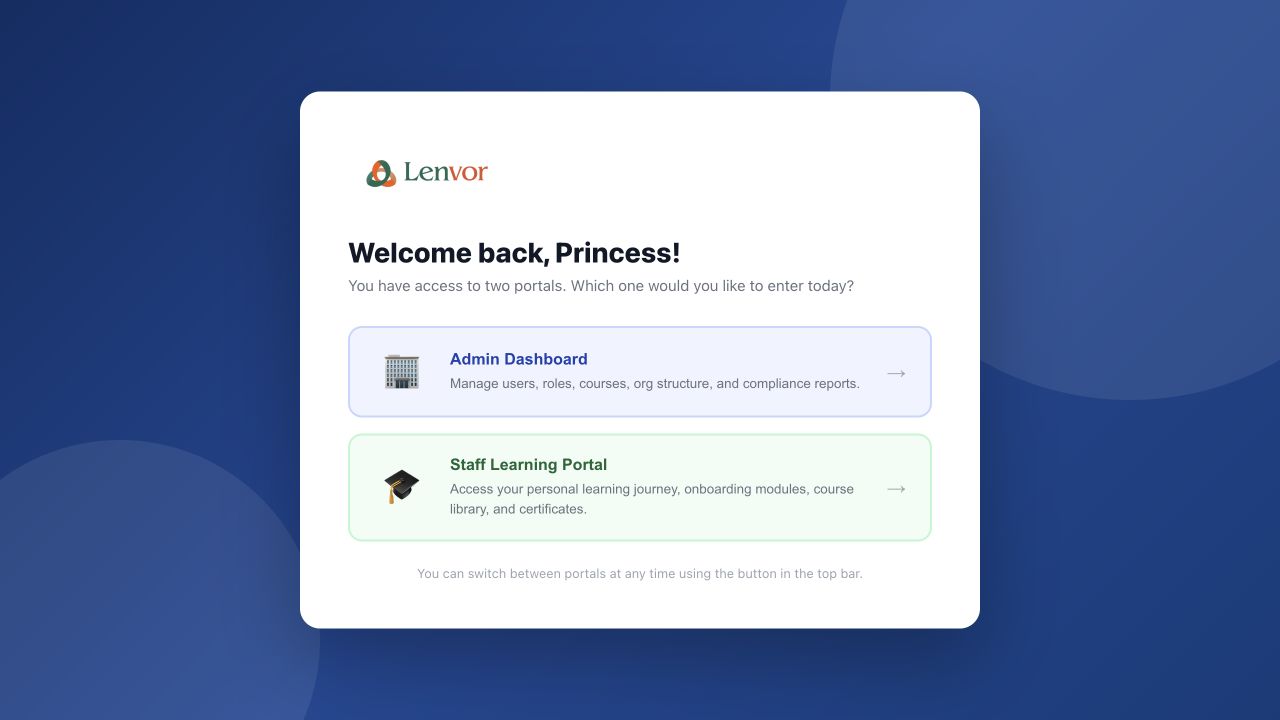
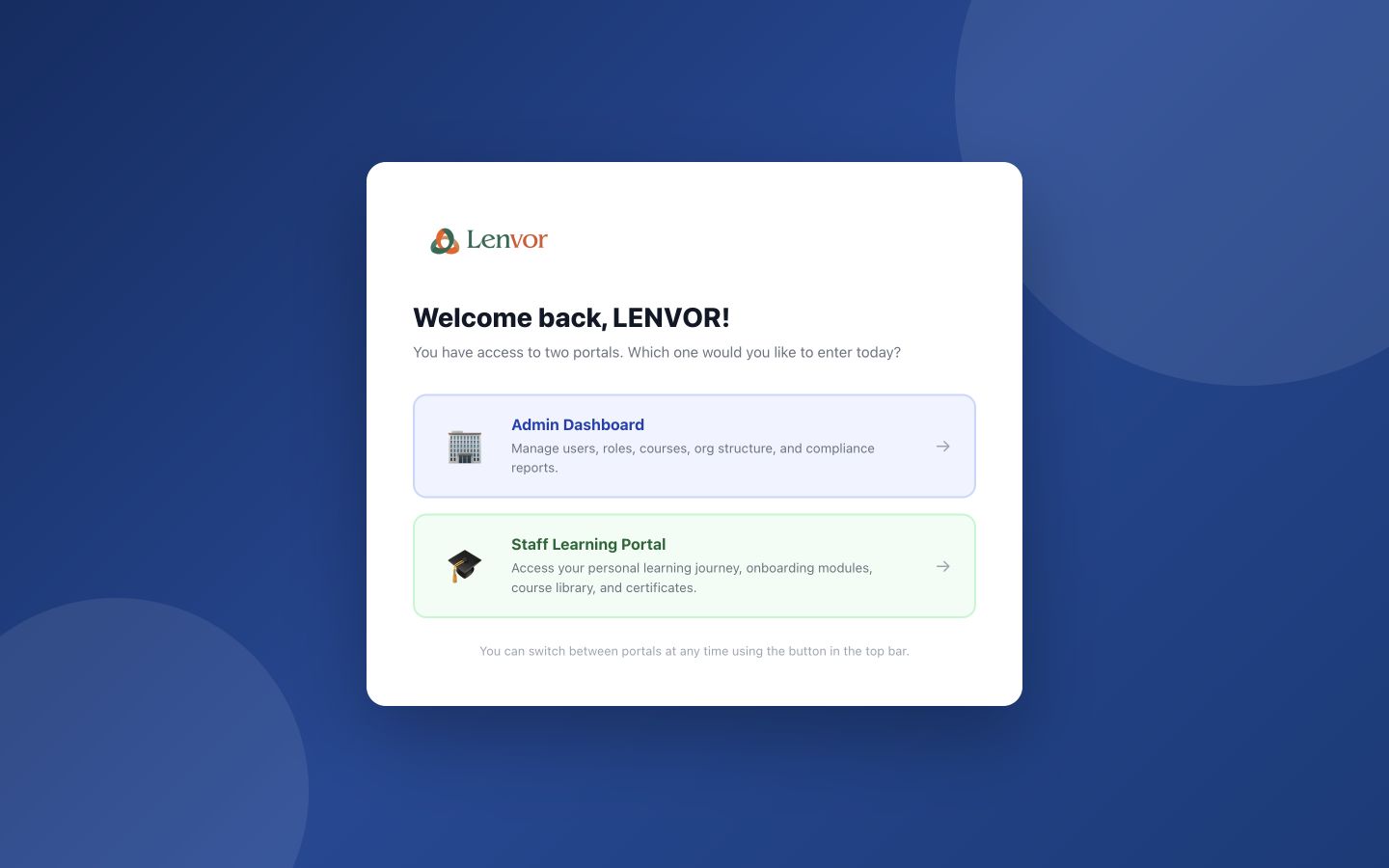
On Select a portal, choose Admin Dashboard for administration or Staff Learning Portal for personal learning.

Lenvor portal selector with Admin Dashboard and Staff Learning Portal choices

Lenvor portal selector with Admin Dashboard and Staff Learning Portal choices

Done. The Admin Dashboard or Staff Learning Portal is open.

If something goes wrong

Only one portal opens.

The portal selector is shown only when the account has more than one workspace entitlement.
The expected portal is missing.

Ask an administrator to review the roles and portal access assigned to your account.

Getting started

Switch between admin and staff portals

Move between the administrative and learning workspaces without signing in again.

All users 1 min read Web

Before you start

  • You are signed in
  • Your account has access to both portals

Use the portal switch

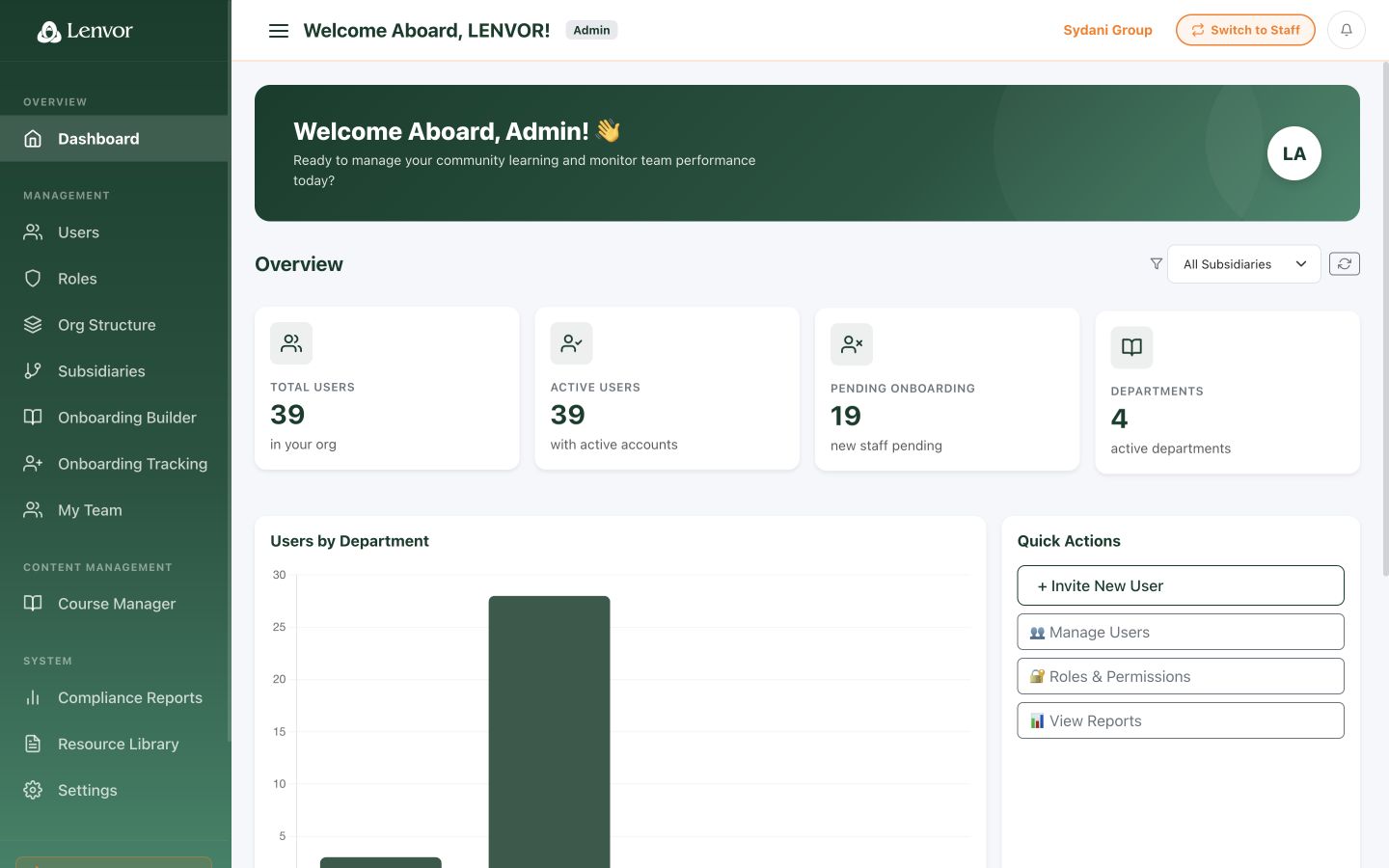
From the admin workspace, select Switch to Staff. From Staff Mode, use Switch to Admin Mode to return.

Lenvor admin dashboard with the Switch to Staff control

1 — Switch to Staff.

Lenvor admin dashboard with the Switch to Staff control

Done. The other entitled portal is open.

If something goes wrong

I cannot see a switch control.

The control appears only when the signed-in account can use both portals.

The destination does not open.

Refresh the page once. If the problem continues, ask an administrator to confirm your portal access.

Learning

Use the resource library

Find shared learning resources in the workspace available to your role.

All users 2 min read Web

Before you start

  • You are signed in to an entitled Lenvor portal

Review resources as an administrator

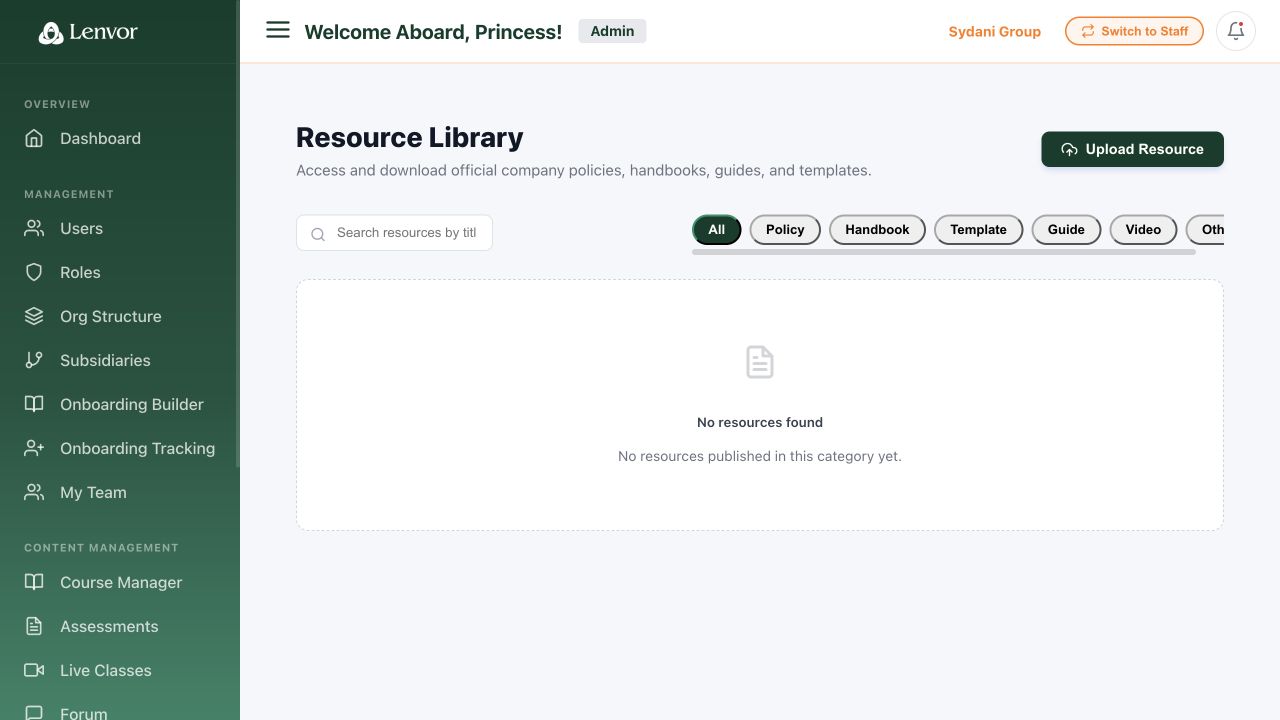
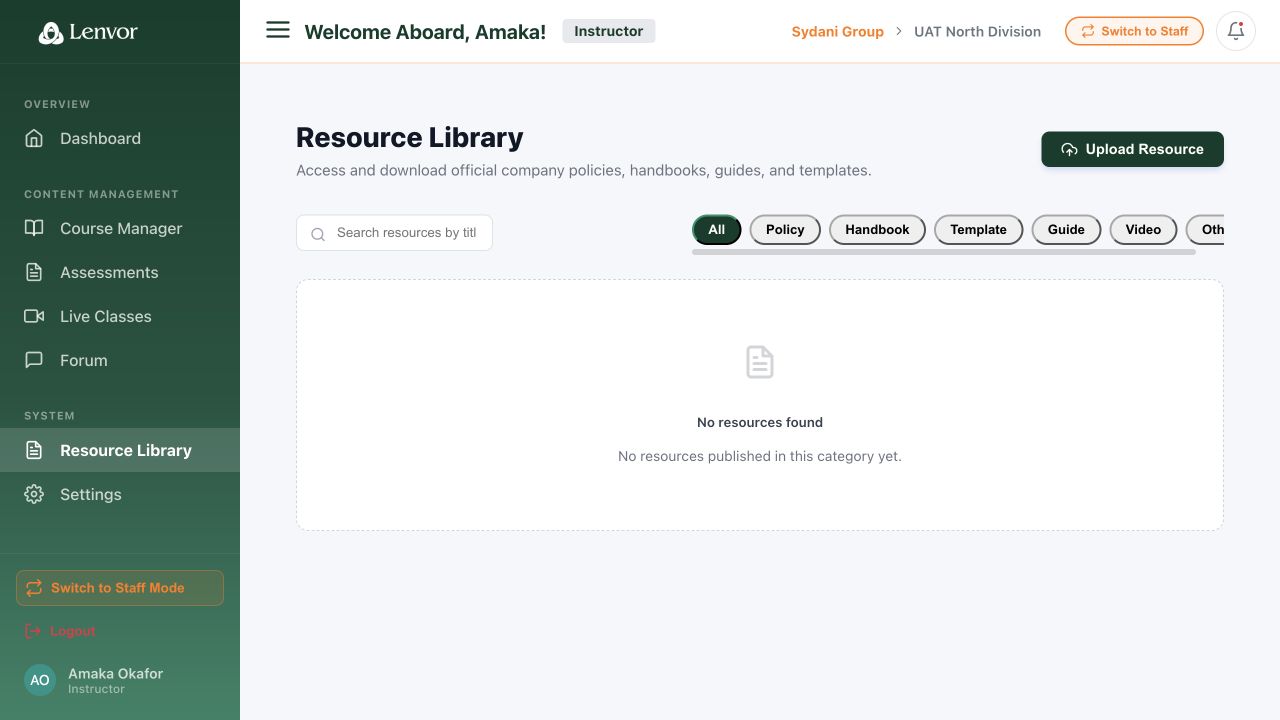
In the admin workspace, open Resource Library and use the visible list and controls to review available resources.

Lenvor administrator Resource Library

Lenvor administrator Resource Library

Review resources in Staff Mode

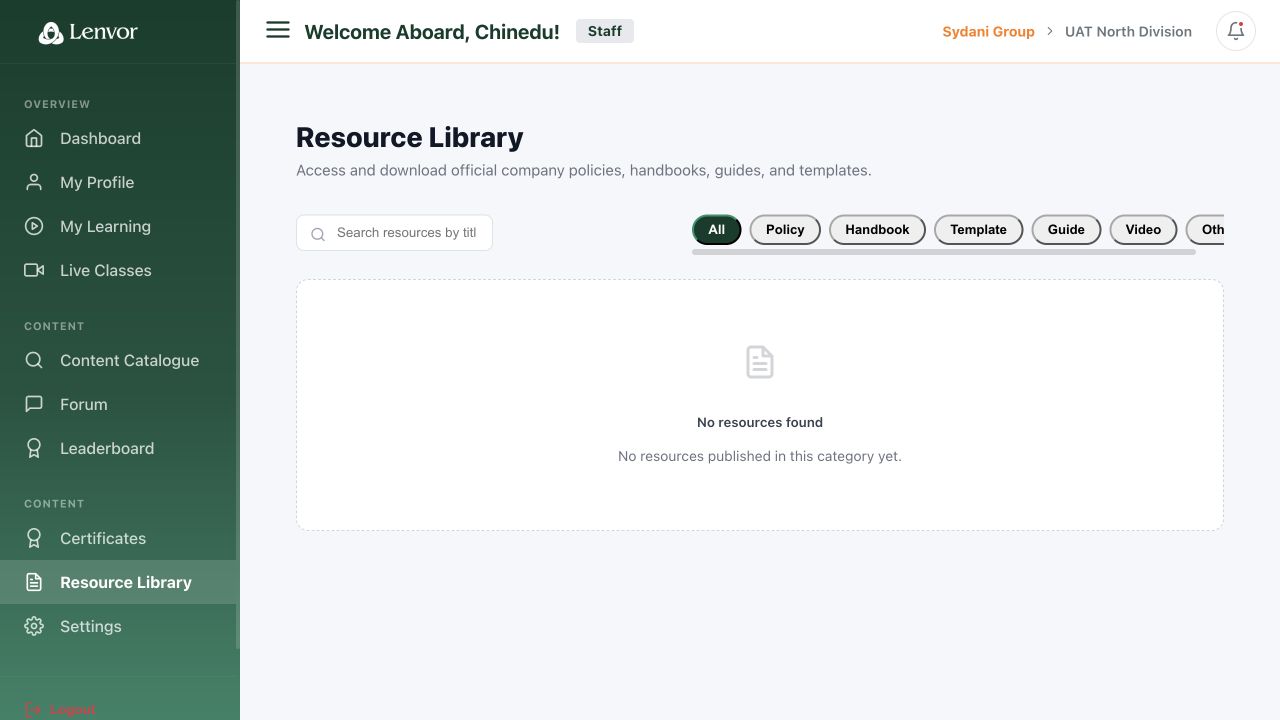
In Staff Mode, open Resource Library and select a resource that is available to your account.

Lenvor staff Resource Library

Lenvor staff Resource Library

Done. You have found the available resource or confirmed that it is not currently listed.

If something goes wrong

The resource is not listed.

Check the current portal and any search or category controls, then ask the content owner whether the resource is available to your role.

I cannot upload a resource.

Upload controls are administrative and may not be available in Staff Mode or to every administrator.

Administration

Read the admin dashboard

Review the high-level learning, user, and onboarding indicators available to administrators.

Administrators 2 min read Web

Before you start

  • The Admin Dashboard is open

Review the dashboard summaries

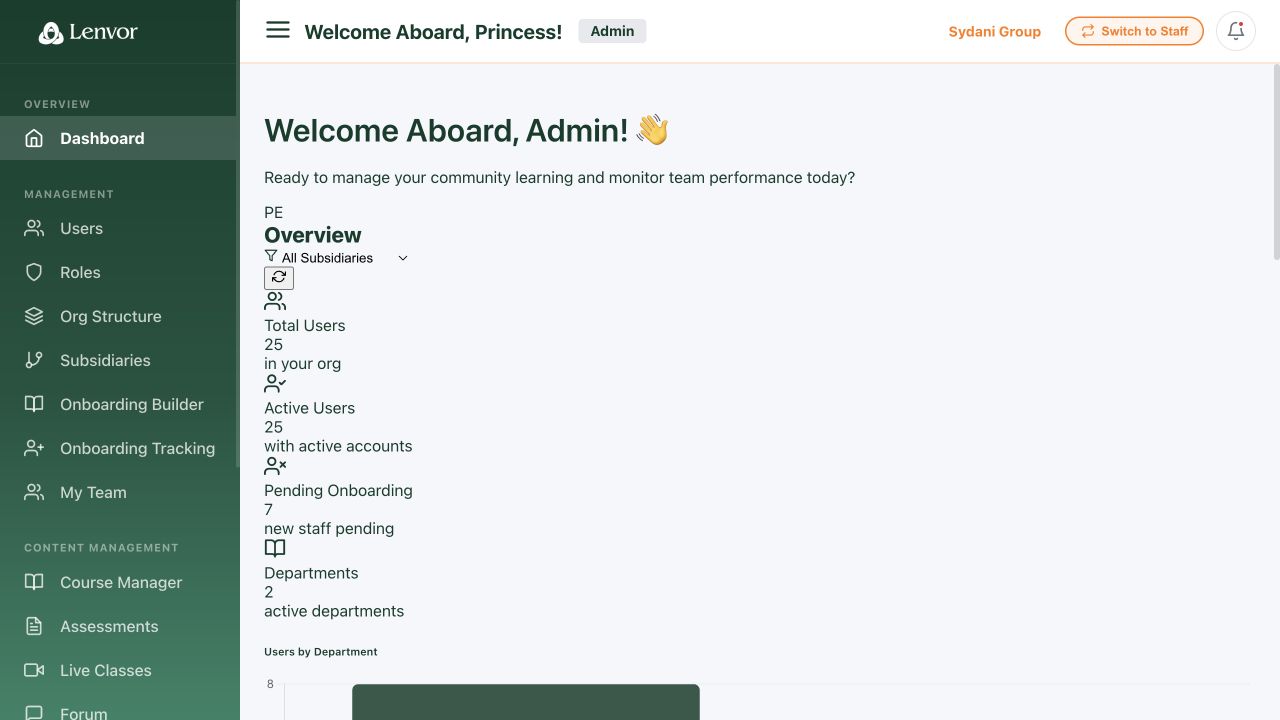
Use the summary cards to review users, courses, onboarding, and other available tenant indicators. Select a navigation item when you need the underlying records.

Lenvor Admin Dashboard with summary cards and administration navigation

Lenvor Admin Dashboard with summary cards and administration navigation

Done. You have reviewed the current summary cards and recent administrative activity.

If something goes wrong

A summary is zero or empty.

The dashboard reflects records available to the current tenant and account.

I need record-level detail.

Open the matching navigation area, such as Users, Courses, or Onboarding Tracking.

People and access

Find and review users

Use User Management to inspect people registered in the tenant.

Administrators 2 min read Web

Before you start

  • The admin workspace is open

Open User Management

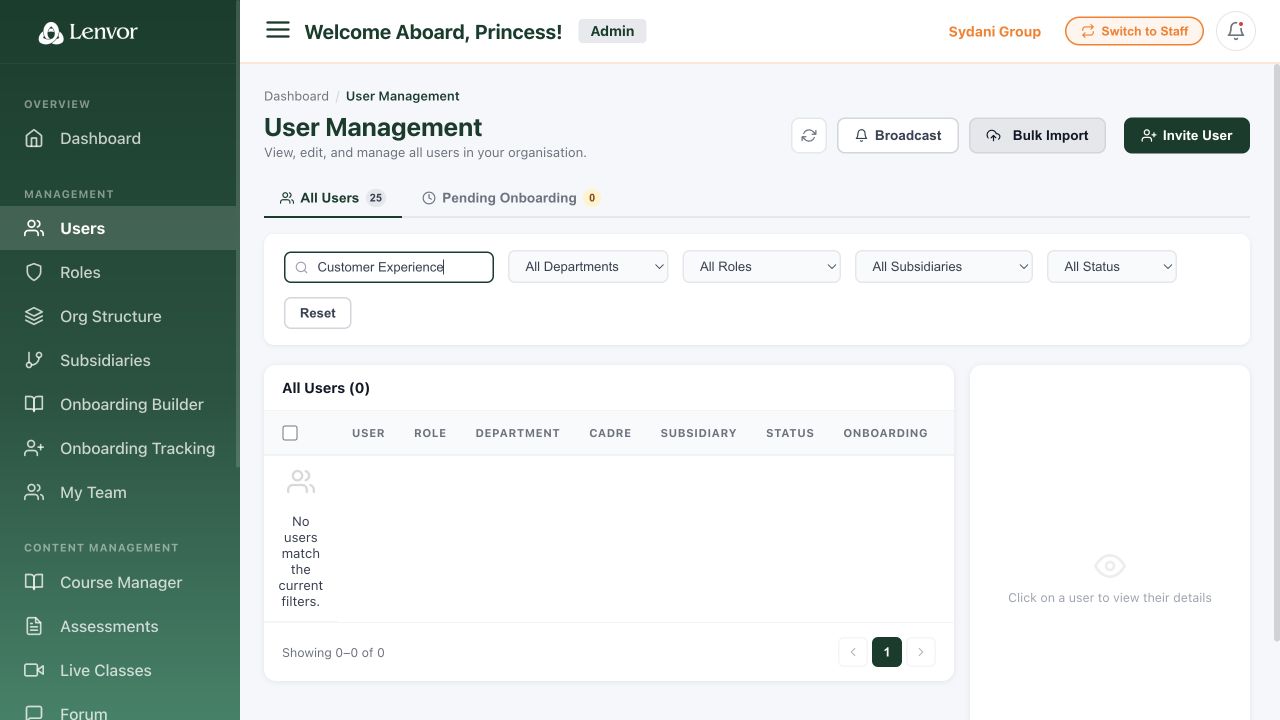
Select User Management and use the visible search and filters to locate a person. Review the row before opening or changing any record.

Lenvor User Management list with personal details redacted

Lenvor User Management list with personal details redacted

Done. You have found the user record you need and reviewed its visible status and role information.

If something goes wrong

The user is not in the list.

Check the search term and any active filters, then confirm that the person belongs to the current tenant.

I cannot change a user.

This guide covers review only. Editing depends on the permissions assigned to your administrator account.

People and access

Review roles and permissions

Inspect the roles that define access within the tenant.

Administrators 2 min read Web

Before you start

  • The admin workspace is open

Open role management

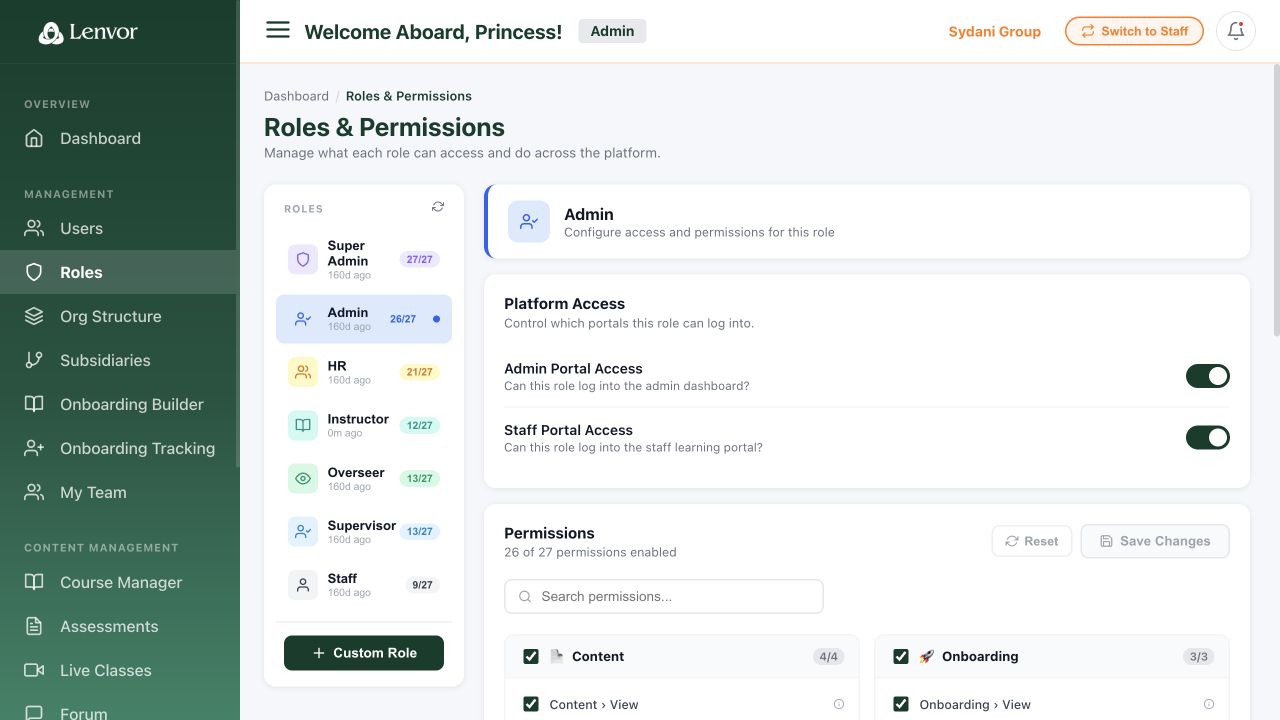
Open the roles and permissions area and review the available role names and access summaries before assigning or changing access.

Lenvor roles and permissions administration page

Lenvor roles and permissions administration page

Done. You have identified the relevant role and reviewed the access information shown for it.

If something goes wrong

A role I expect is missing.

Confirm that you are in the correct tenant and that your administrator account can view role configuration.

The role does not match a user's access.

Review the user's assignments in User Management, then escalate unexpected access to the tenant owner.

People and access

Review the organization structure

Review the organization and subsidiary structure used to group people and learning activity.

Administrators 3 min read Web

Before you start

  • The admin workspace is open

Review the organization view

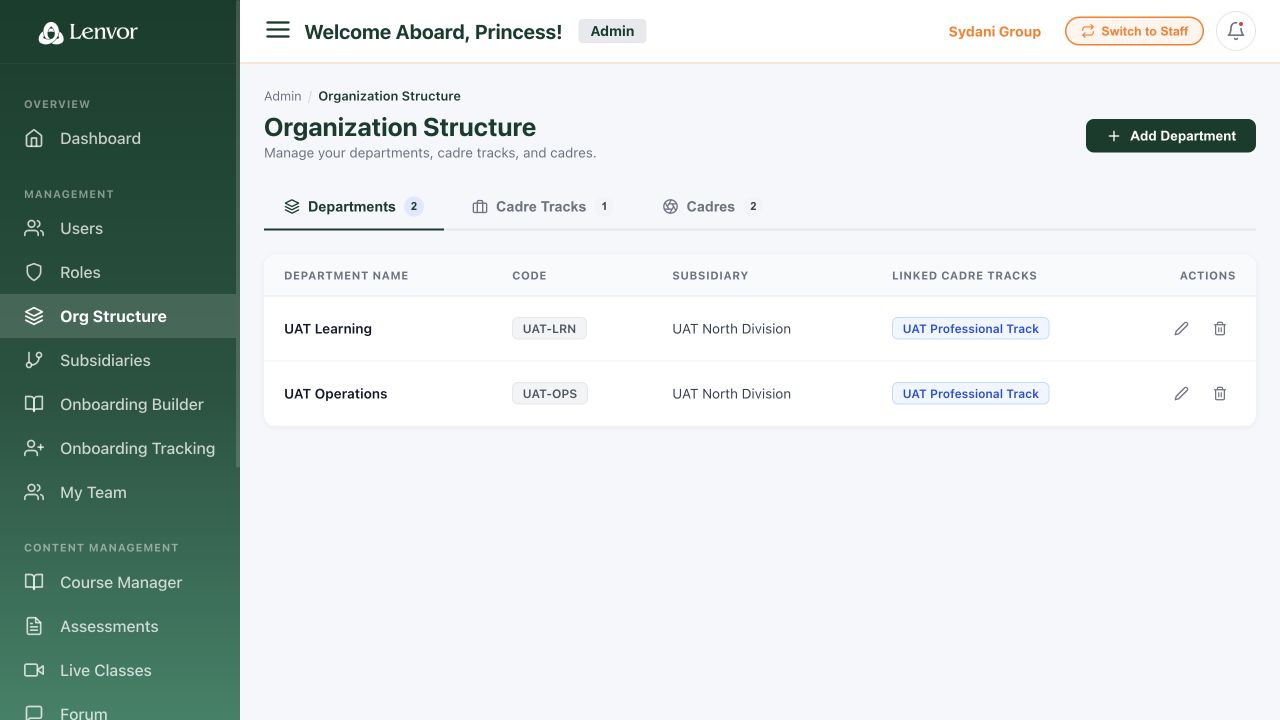
Open Organization Structure and inspect the hierarchy shown for the current tenant.

Lenvor organization structure administration view

Lenvor organization structure administration view

Review subsidiaries

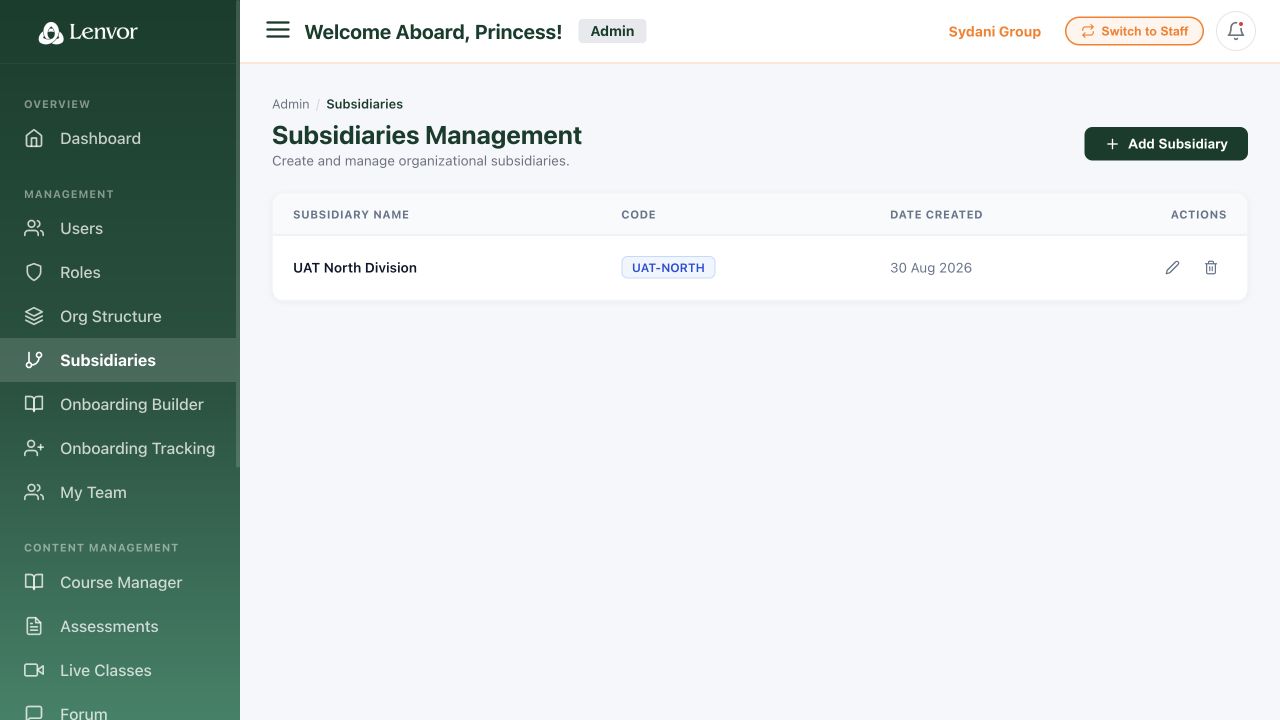
Open the subsidiaries view and confirm the organizations available for grouping users and activity.

Lenvor subsidiaries administration view

Lenvor subsidiaries administration view

Done. You understand the visible organization hierarchy and the subsidiaries available to the tenant.

If something goes wrong

The hierarchy is incomplete.

Confirm that you are viewing the correct tenant and that the expected subsidiary or unit has been configured.

I need to add or edit a unit.

Use the available organization controls only if your administrator role permits changes.

Learning

Review the onboarding programme

Inspect the onboarding sequence configured for staff learners.

Administrators 2 min read Web

Before you start

  • The admin workspace is open

Open the onboarding programme

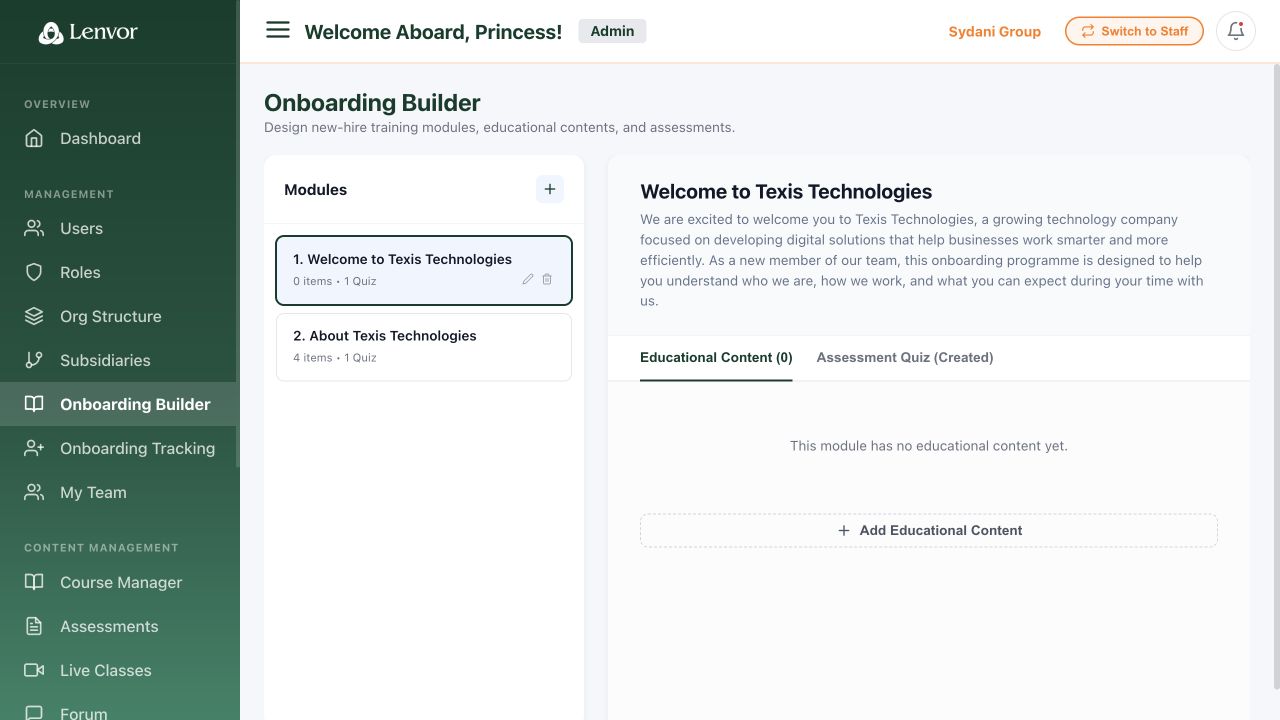
Select Onboarding Programme and review the learning sequence and any status information shown.

Lenvor Onboarding Programme administration page

Lenvor Onboarding Programme administration page

Done. You have reviewed the visible onboarding programme and its ordered learning items.

If something goes wrong

No onboarding items appear.

The current tenant may not have an onboarding programme configured.

I need to change the sequence.

Editing is outside this review guide. Use only the controls provided to an authorized programme administrator.

Reports

Track staff onboarding

Review each learner's visible onboarding progress and status.

Administrators 2 min read Web

Before you start

  • The admin workspace is open
  • Staff have been assigned onboarding activity

Open onboarding tracking

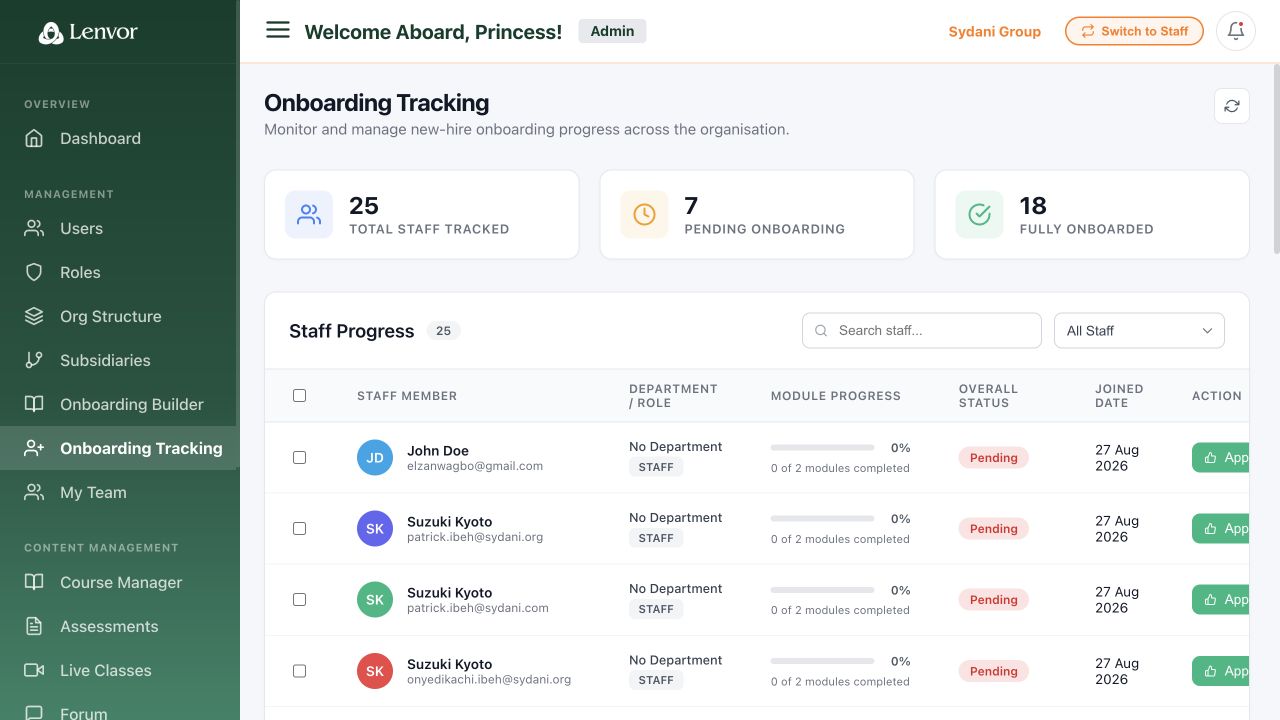
Select Onboarding Tracking and review each learner's visible progress and status. Use the list to identify records that need attention.

Lenvor onboarding tracking list with personal details redacted

Lenvor onboarding tracking list with personal details redacted

Done. You have identified the staff records that need follow-up.

If something goes wrong

A staff member is missing.

Confirm that the person belongs to the current tenant and has been assigned the onboarding programme.

Progress looks out of date.

Refresh the page once, then confirm the learner's latest completed activity before escalating.

Reports

Review the My Team dashboard

Check team learning information available to the signed-in account.

Administrators 1 min read Web

Before you start

  • The admin workspace is open

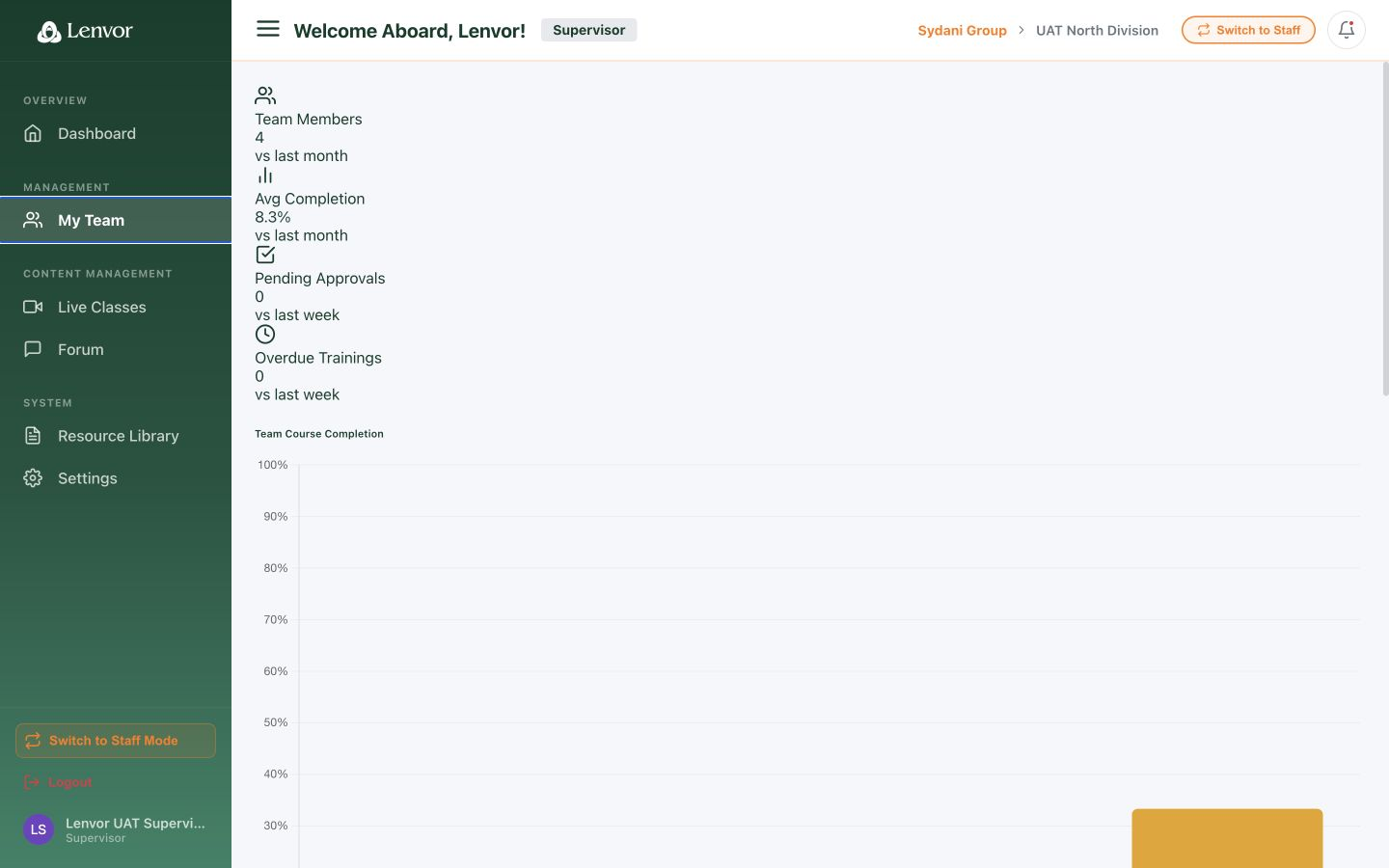
Open My Team

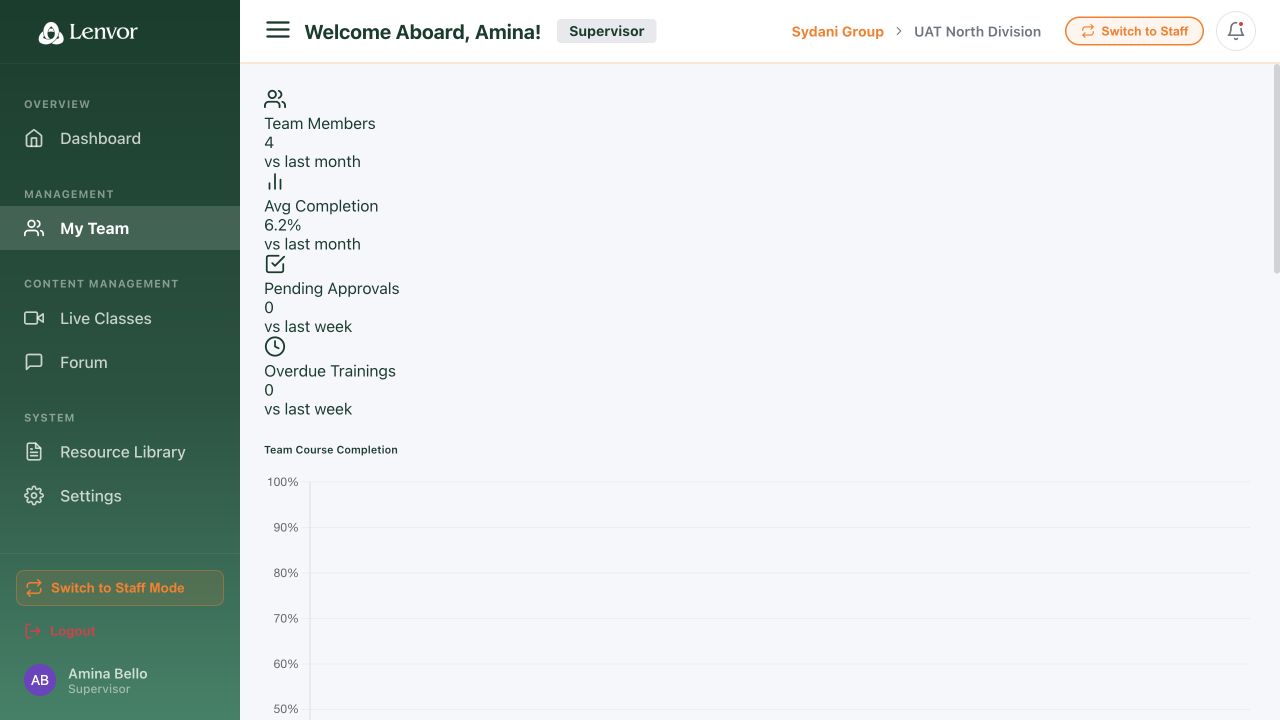
Select My Team and review the displayed team information. If Lenvor shows an empty state, no team records are currently available to this account.

Lenvor My Team page showing an empty state

Lenvor My Team page showing an empty state

Done. You have reviewed the team dashboard or confirmed that no team information is currently available.

If something goes wrong

The page has no team records.

The empty state means no team information is currently available to this account.

A direct report is missing.

Ask an administrator to review the person's organizational assignment and your team-lead access.

Learning

Find and review courses

Inspect the courses and status information visible to the tenant administrator.

Administrators 2 min read Web

Before you start

  • The admin workspace is open

Open the course list

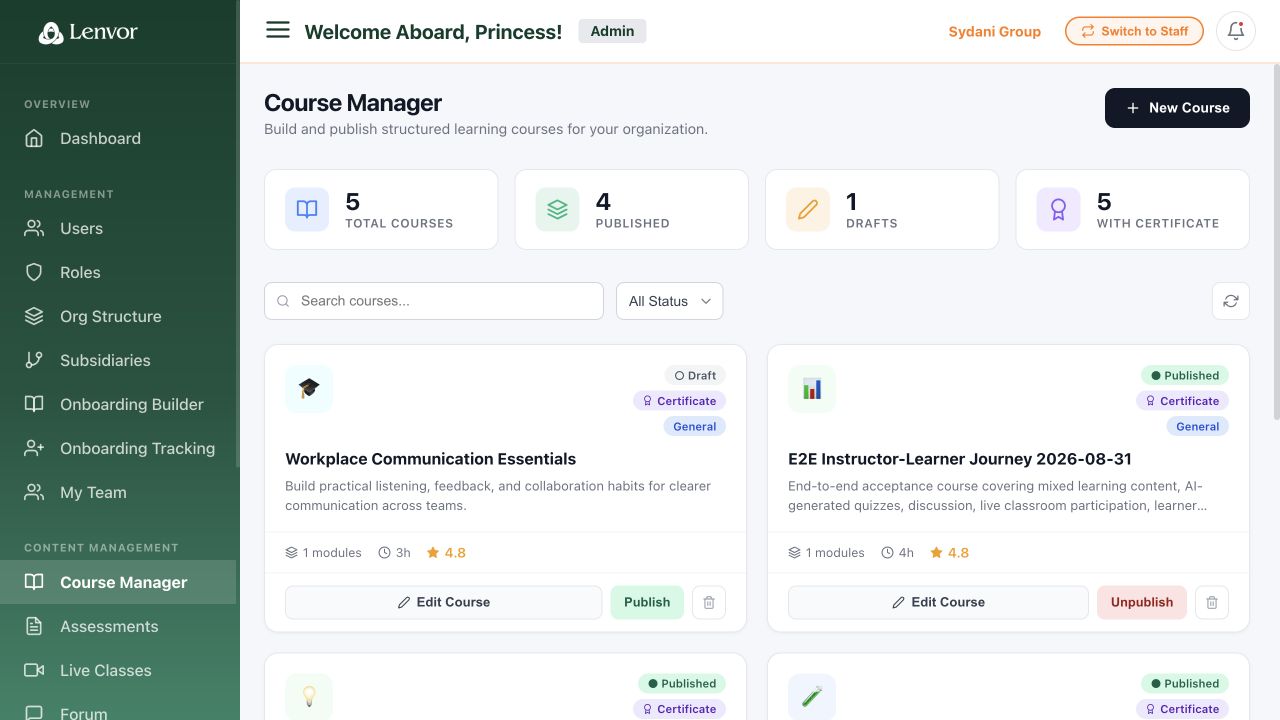
Open the course administration area, locate the relevant row, and review its visible status before taking any further action.

Lenvor course administration list with status information

Lenvor course administration list with status information

Done. You have located a course and reviewed its visible status information.

If something goes wrong

The course is missing.

Check search or filters and confirm that the course belongs to the current tenant.

I cannot edit the course.

This guide covers review only. Course changes depend on the permissions assigned to your account.

Reports

Review compliance and learning reports

Review the reporting options and learning indicators available to administrators.

Administrators 2 min read Web

Before you start

  • The admin workspace is open

Open the reports area

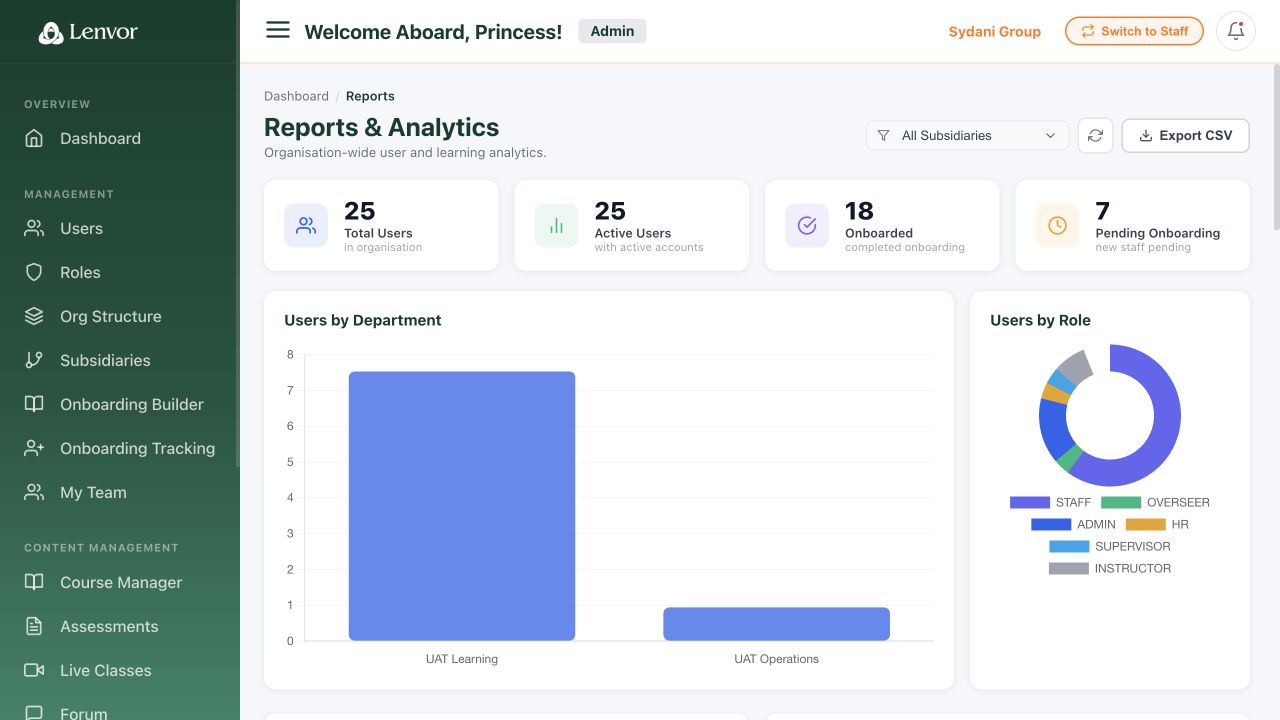
Open the reporting area and review the available compliance and learning summaries. Use only data and filters visible to your account.

Lenvor compliance and learning reports overview

Lenvor compliance and learning reports overview

Done. You have identified the available report or indicator needed for your review.

If something goes wrong

A report is empty.

The current tenant or selected period may not contain matching learning activity.

I cannot see a report I expect.

Report access depends on your role and the modules enabled for the tenant.

Getting started

Review your account settings

Review the profile and account settings visible to your signed-in account.

Staff learners 2 min read Web

Before you start

  • You are signed in to the Staff Learning Portal

Review your profile

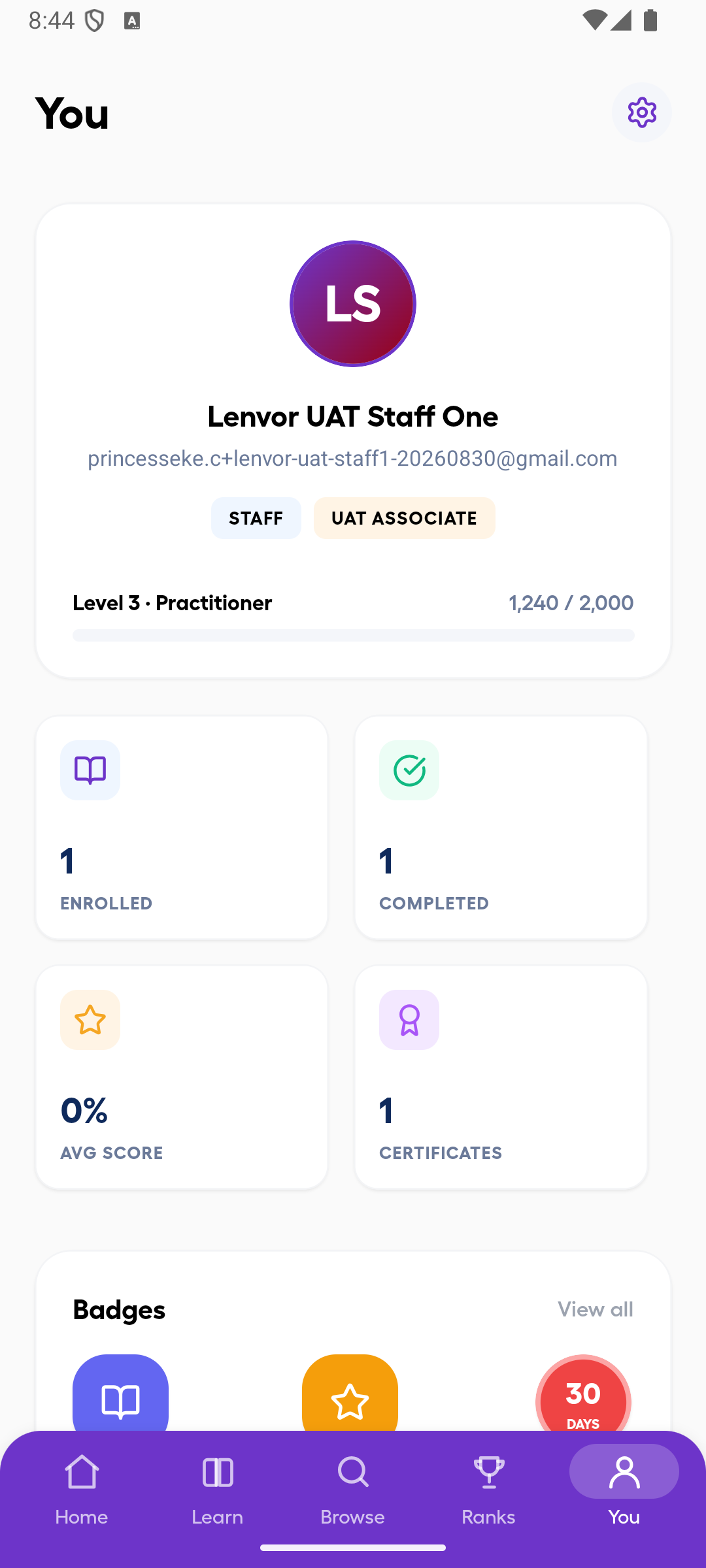
Open your profile area and check the identity and contact information shown for the signed-in account.

Lenvor staff profile with contact details redacted

Lenvor staff profile with contact details redacted

Review settings

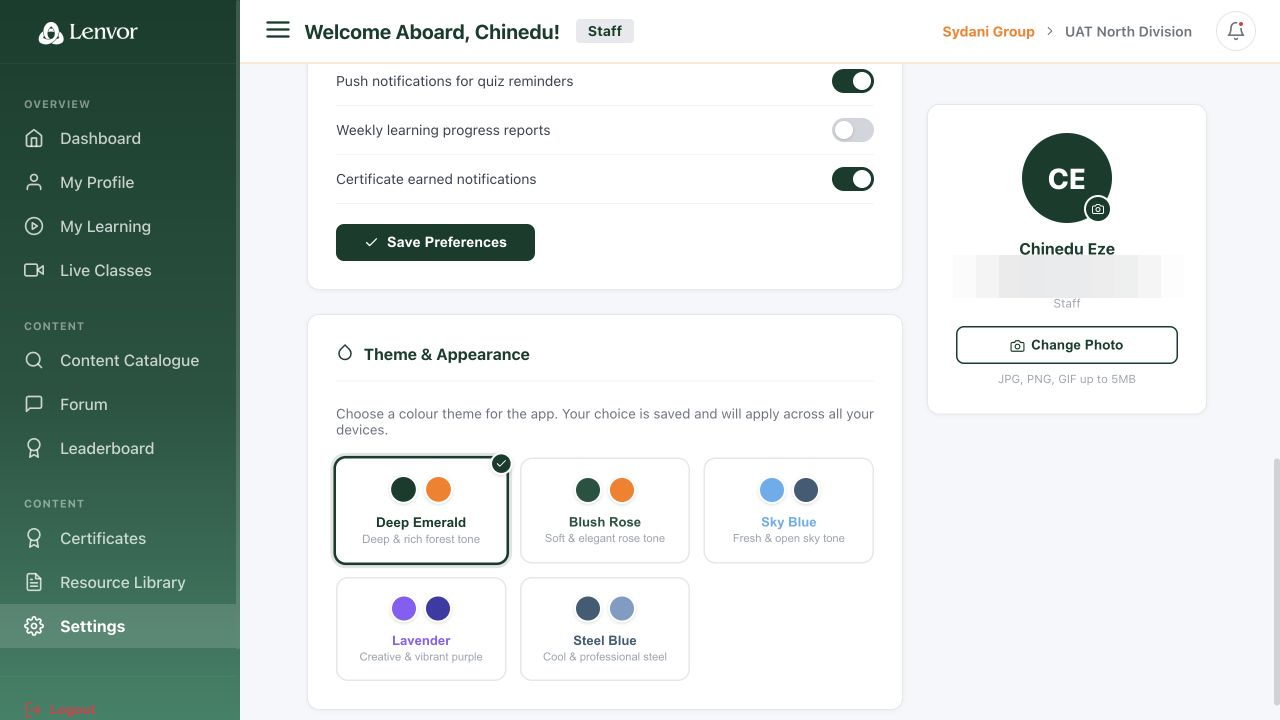
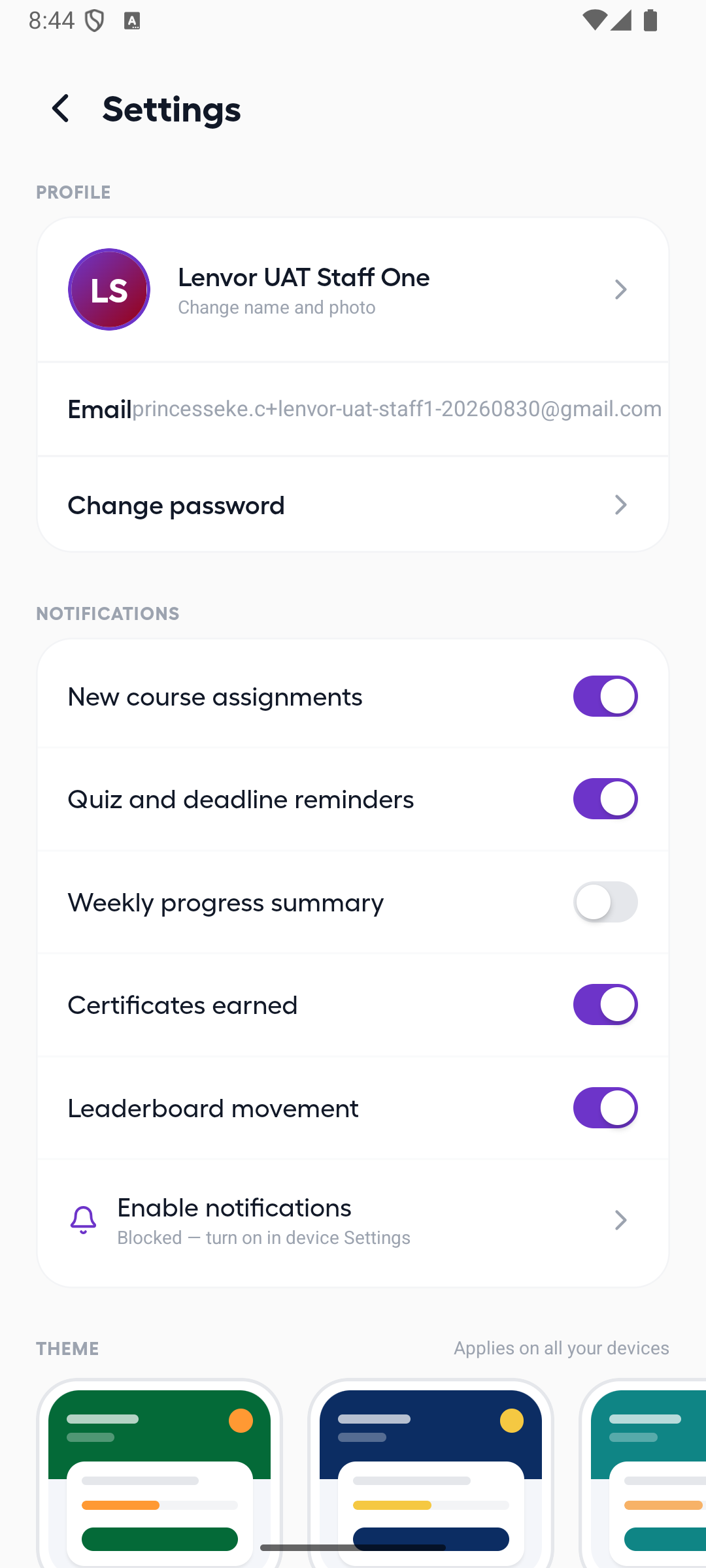
Open the account settings view and review the available controls. Do not change a value unless you understand its effect.

Lenvor staff account settings with sensitive details redacted

Lenvor staff account settings with sensitive details redacted

Done. You have reviewed the personal details and settings currently shown for your account.

If something goes wrong

A personal detail is incorrect.

Ask your tenant administrator to confirm which profile fields you are allowed to change.

A setting is unavailable.

Some settings may be managed by your organization rather than by individual learners.

Learning

Use the staff dashboard

Use Staff Mode to review personal learning and open learner tools.

Staff learners 2 min read Web

Before you start

  • The Staff Learning Portal is open

Review Staff Mode

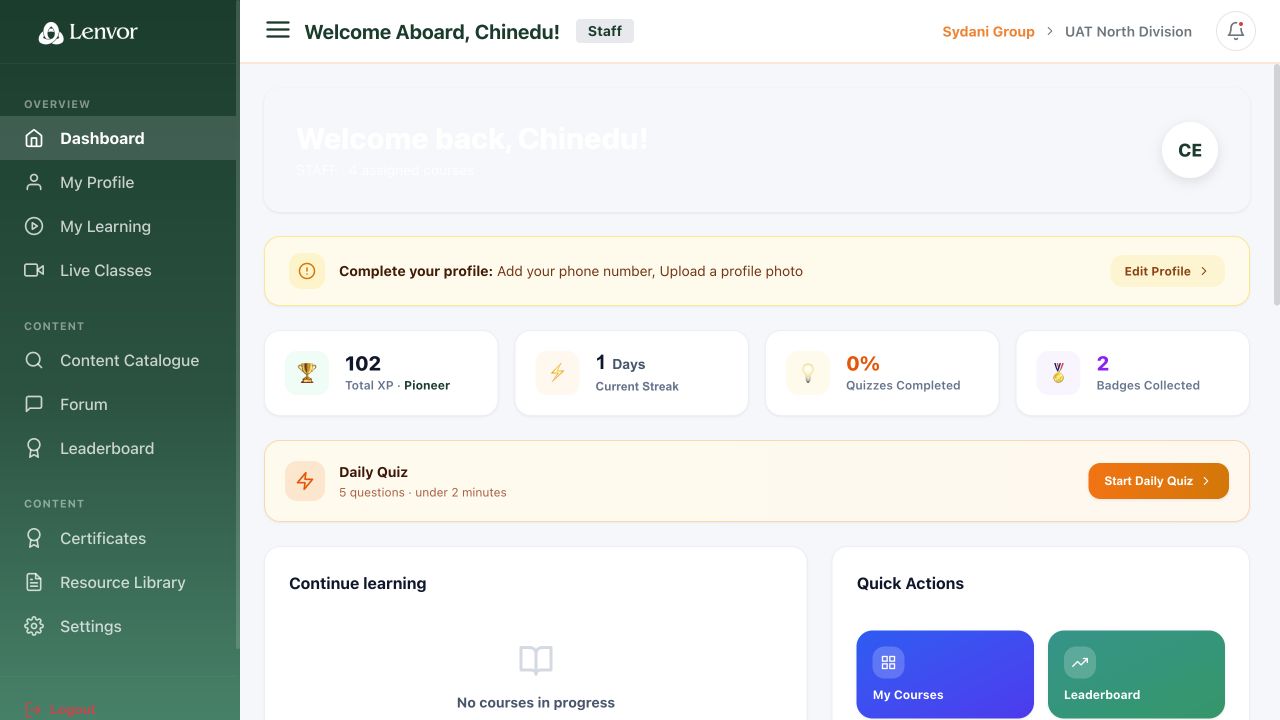
Review the learning summaries on the Staff Mode dashboard, then use the sidebar to open My Learning, Content Catalogue, Leaderboard, or another learner tool.

Lenvor Staff Mode dashboard and learner navigation

Lenvor Staff Mode dashboard and learner navigation

Done. You can identify the personal learning summary and open the learner area you need.

If something goes wrong

The dashboard has no learning activity.

No matching course or onboarding activity may currently be assigned to your account.

I cannot see Staff Mode.

Use the portal selector or switch control, or ask an administrator to confirm your staff portal access.

Learning

Review My Learning

Review courses and learning activity assigned to your account.

Staff learners 1 min read Web

Before you start

  • The Staff Learning Portal is open

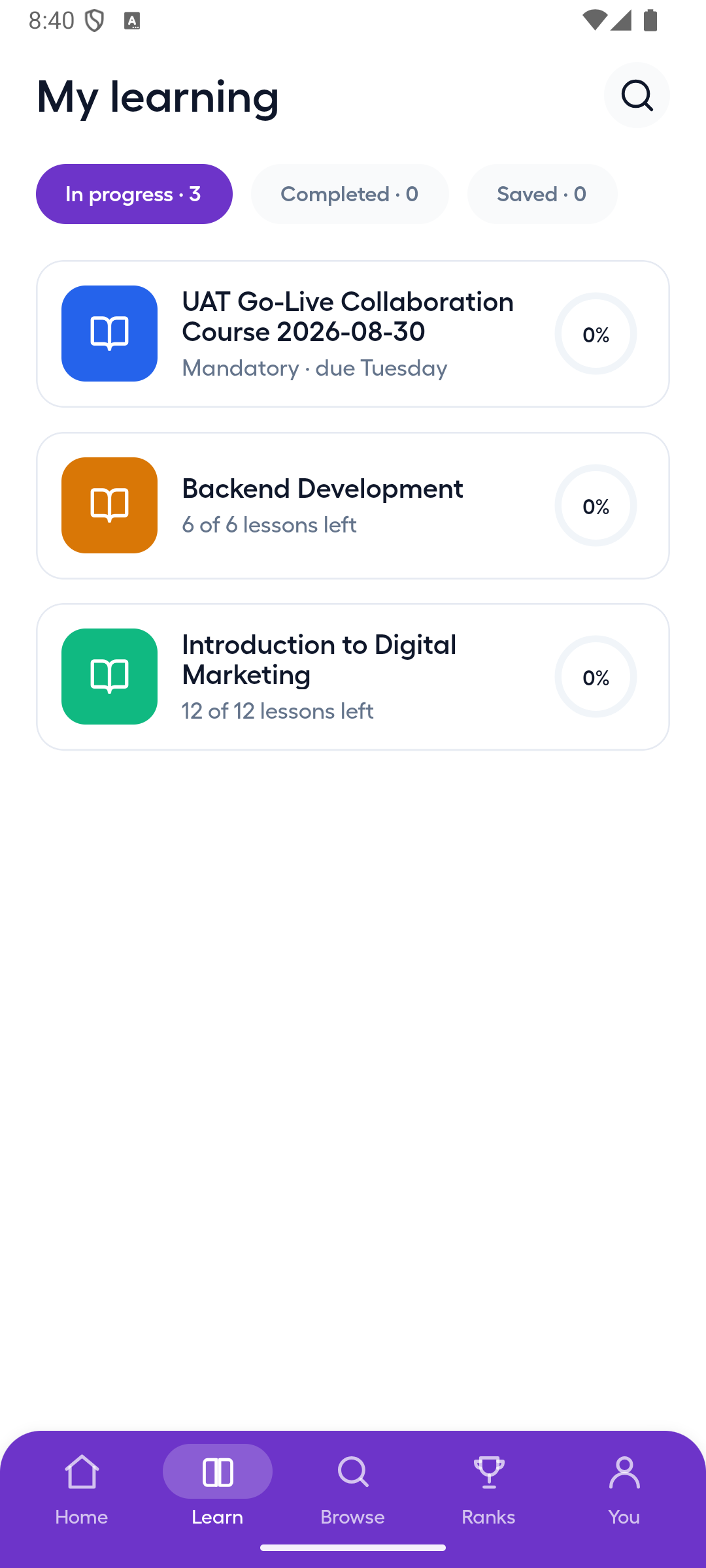
Open My Learning

Select My Learning and review the courses or learning status shown. An empty state means no matching learning is currently available to your account.

Lenvor My Learning page showing an empty state

Lenvor My Learning page showing an empty state

Done. You have reviewed your assigned learning or confirmed that no learning is currently shown.

If something goes wrong

My Learning is empty.

No learning may currently be assigned to your account.

An expected course is missing.

Ask your manager or administrator to confirm the course assignment and availability.

Learning

Browse the content catalogue

Look for learning content available beyond your current assignments.

Staff learners 1 min read Web

Before you start

  • The Staff Learning Portal is open

Open Content Catalogue

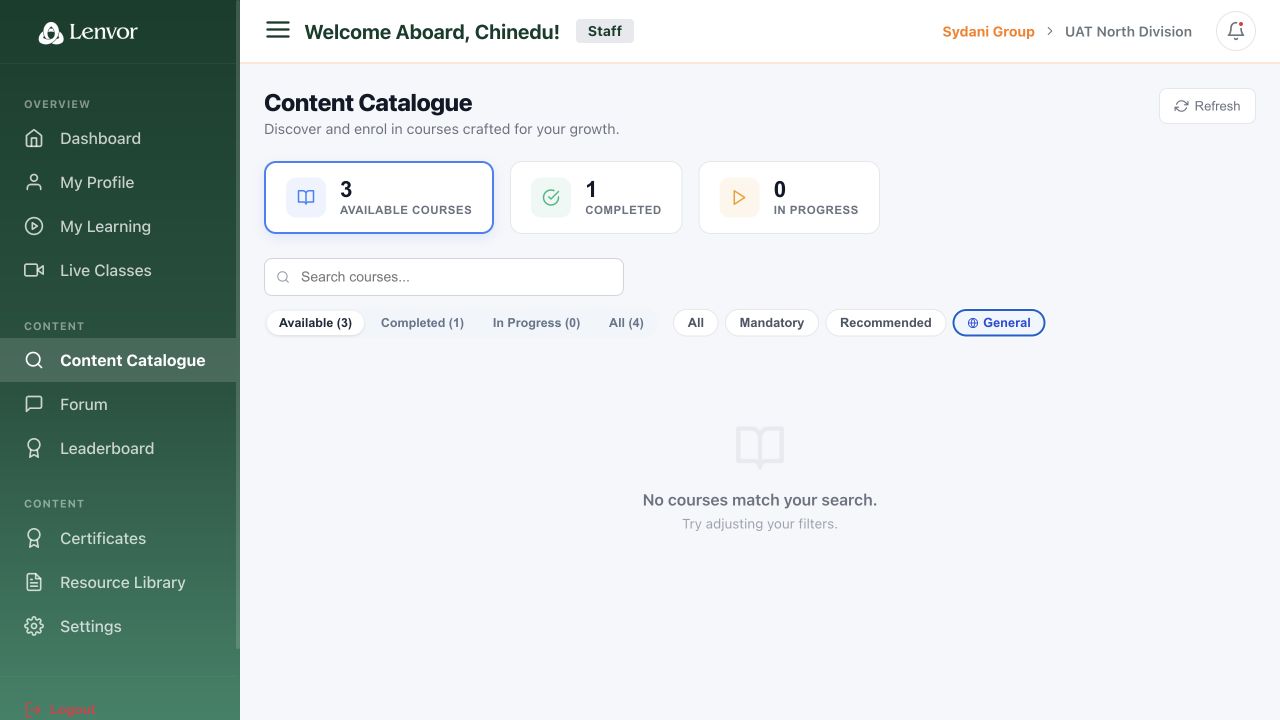
Select Content Catalogue and review the items available to your account. If an empty state appears, no catalogue content is currently available.

Lenvor Content Catalogue showing an empty state

Lenvor Content Catalogue showing an empty state

Done. You have reviewed the available catalogue or confirmed that it is empty.

If something goes wrong

The catalogue is empty.

No catalogue content may currently be published for your tenant or role.

I cannot access an expected item.

Ask the content owner or administrator to confirm its publication and audience settings.

Learning

Review the leaderboard

Review the learning ranking and points information visible to your account.

Staff learners 1 min read Web

Before you start

  • The Staff Learning Portal is open

Open Leaderboard

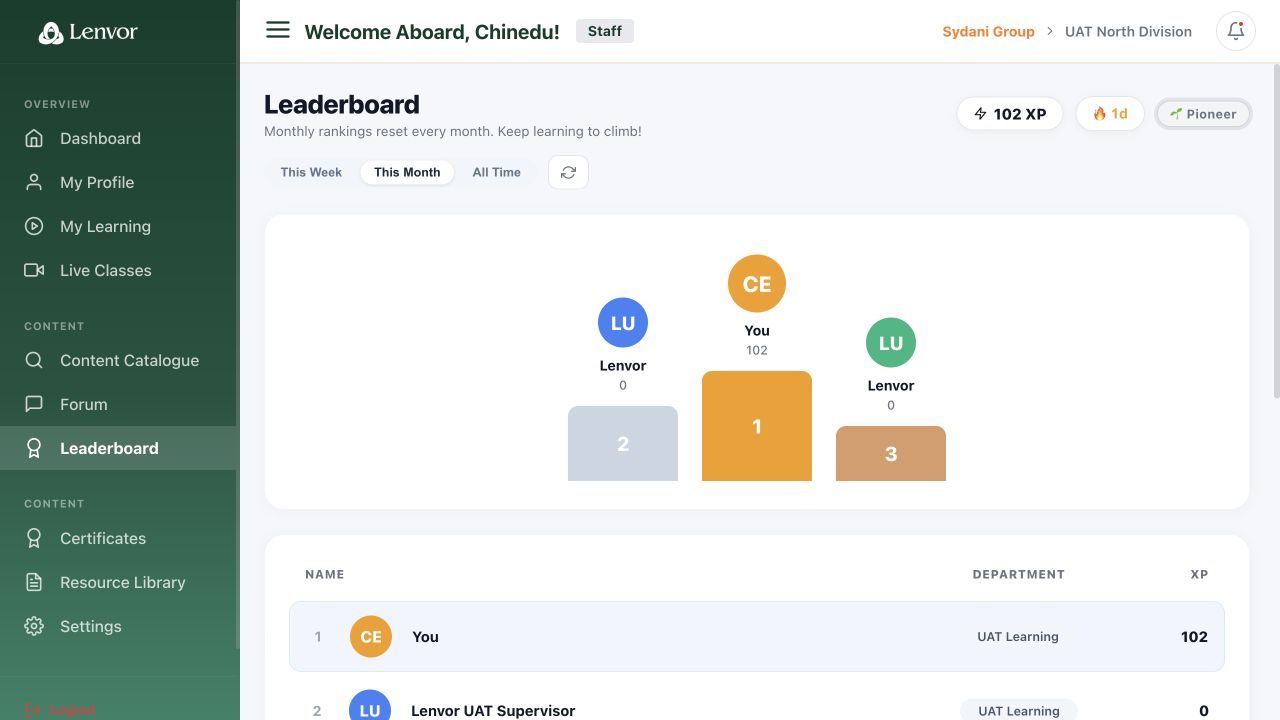
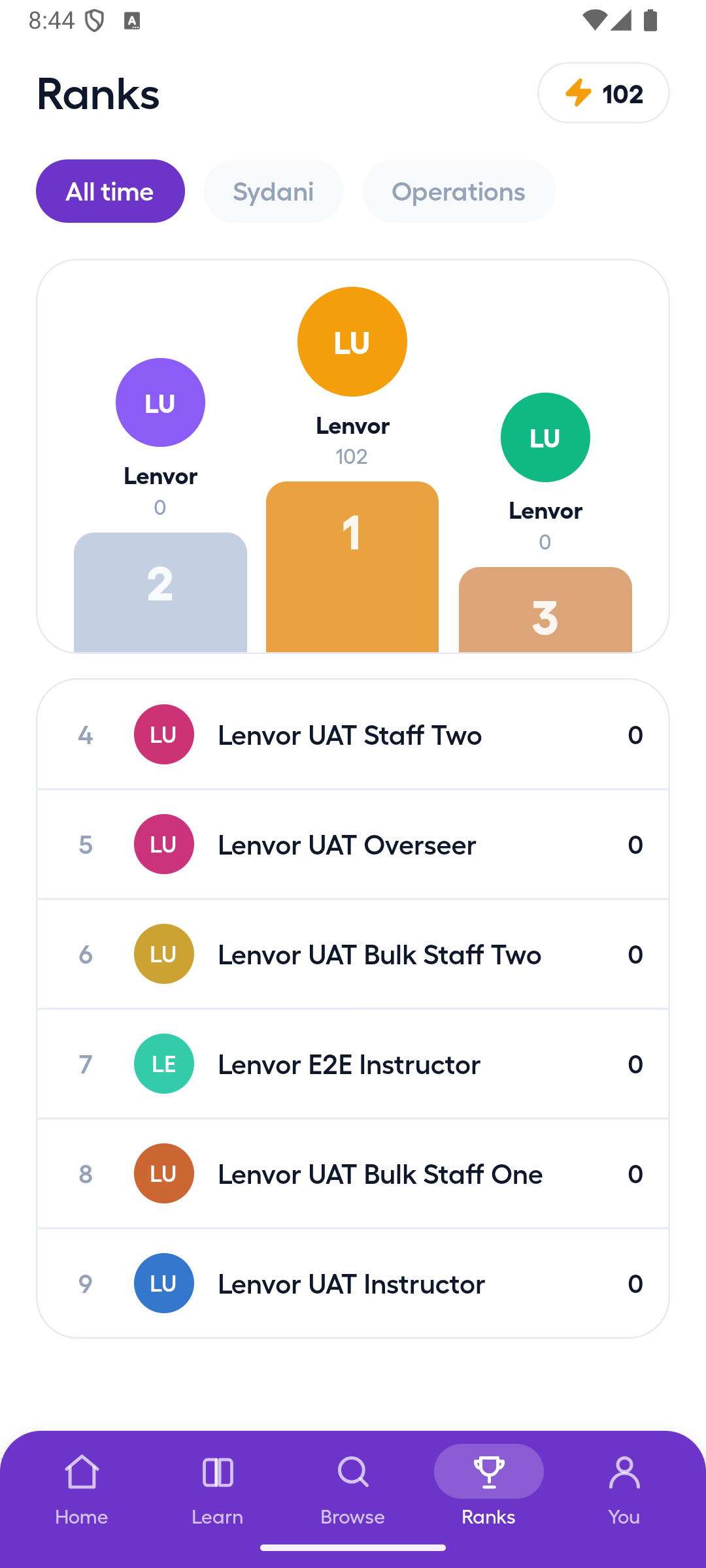
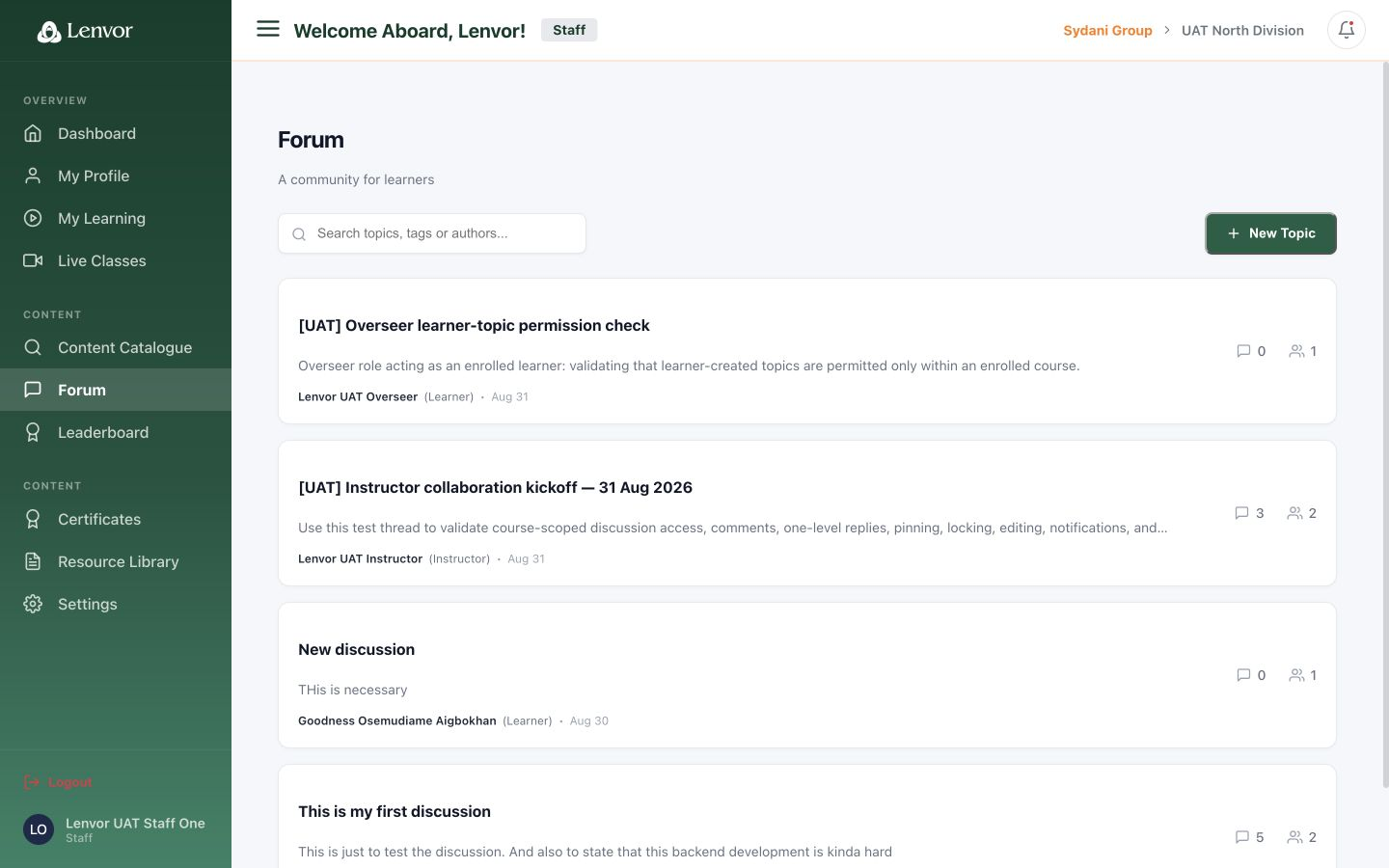
Select Leaderboard and review the ranking and points information shown for the current tenant.

Lenvor learner leaderboard with personal names redacted

Lenvor learner leaderboard with personal names redacted

Done. You have reviewed your position and the visible ranking information.

If something goes wrong

My points have not changed.

Refresh the page after completing activity. If the value remains unexpected, contact support with the course and completion time.

The leaderboard is empty.

No qualifying ranking activity may currently be available for your tenant.

Learning

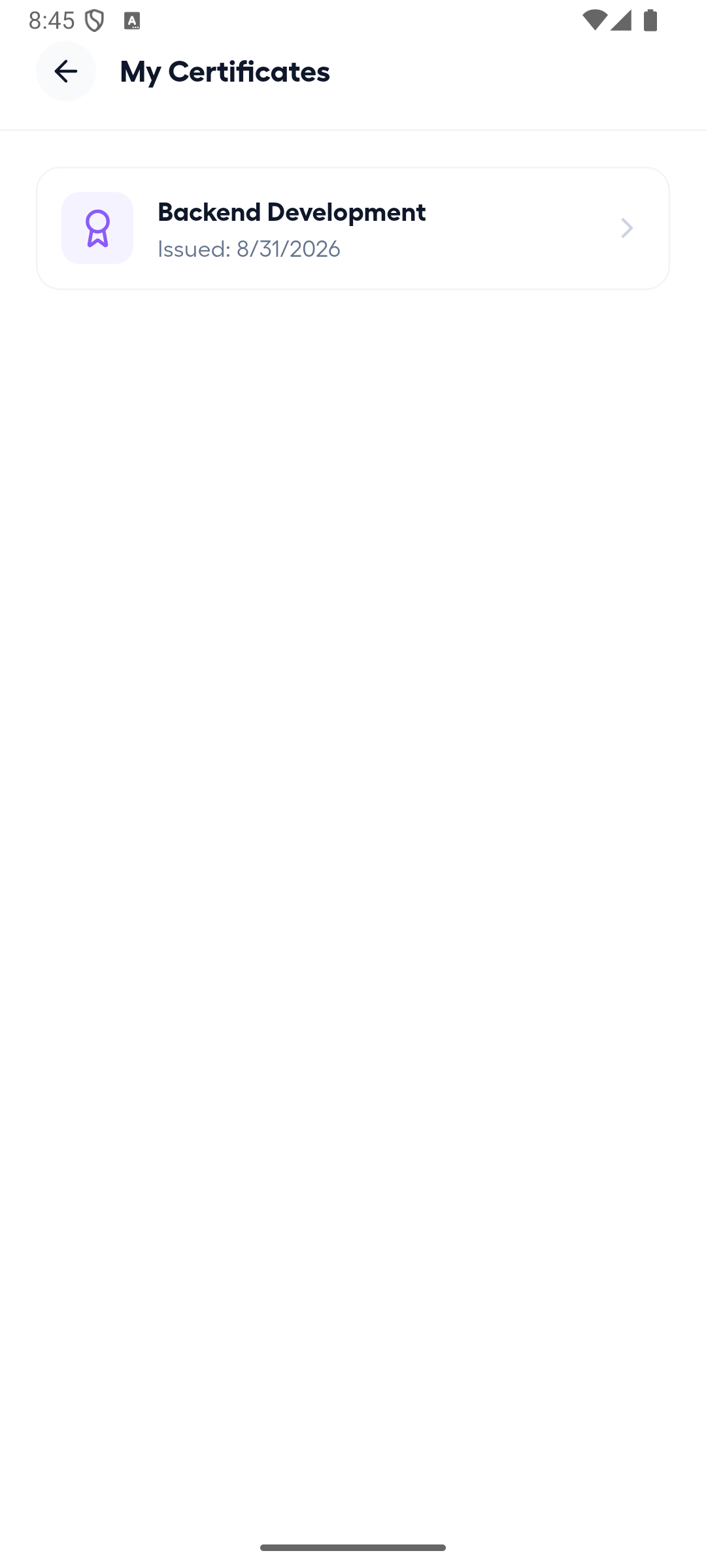
Review certificates

Check certificates available to your learner account.

Staff learners 1 min read Web

Before you start

  • The Staff Learning Portal is open

Open Certificates

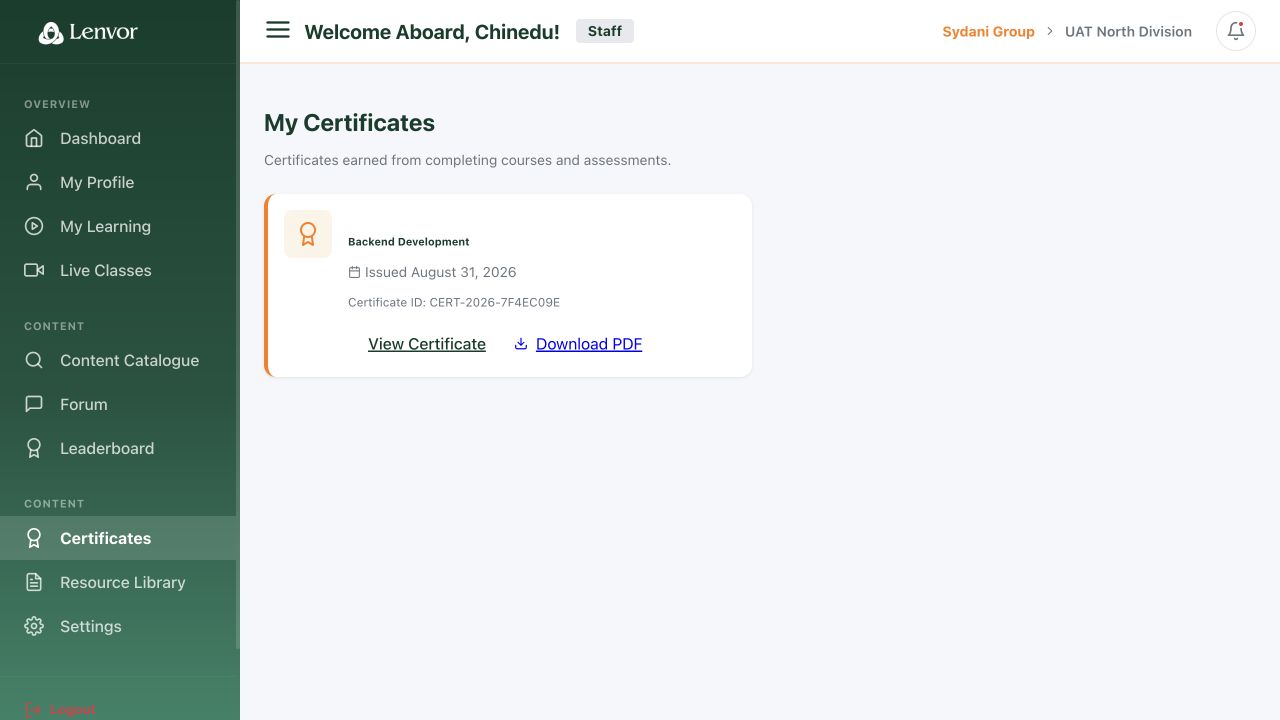
Select Certificates and review the items available to your account. An empty state means no certificate is currently shown.

Lenvor Certificates page showing an empty state

Lenvor Certificates page showing an empty state

Done. You have reviewed the available certificates or confirmed that none are shown.

If something goes wrong

No certificate is shown.

A certificate may not have been issued, or the required learning may not yet be complete.

A completed course has no certificate.

Confirm the course completion and ask the course owner whether that course issues a certificate.

Mobile

Complete mobile onboarding

Move through the introductory screens shown when the Android app starts.

Android onboarding 1 min read Mobile

Before you start

  • The Lenvor Android app is installed
  • The app is open at its introduction

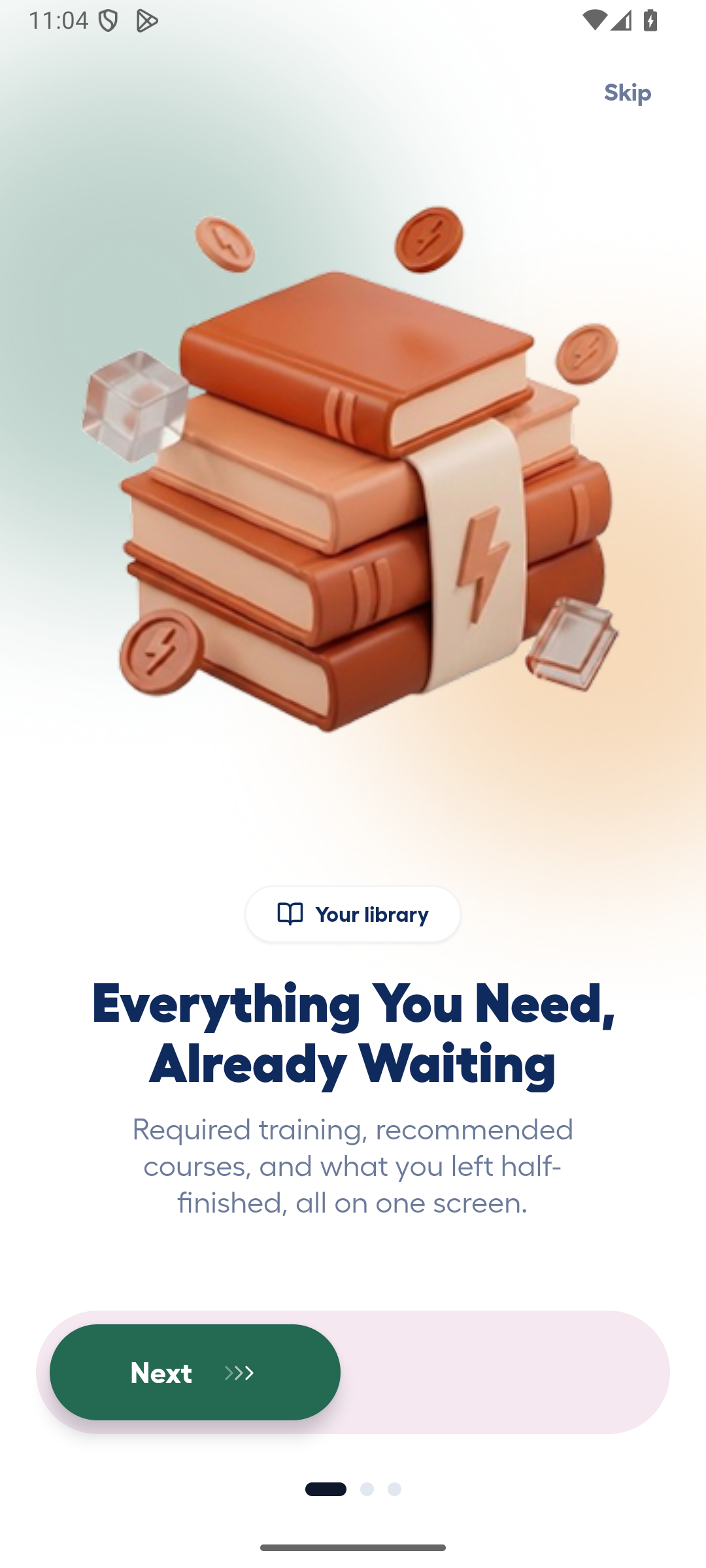
Review the learning library introduction

Read the first introduction screen, then select the visible control to continue.

Lenvor Android onboarding screen introducing the learning library

Lenvor Android onboarding screen introducing the learning library

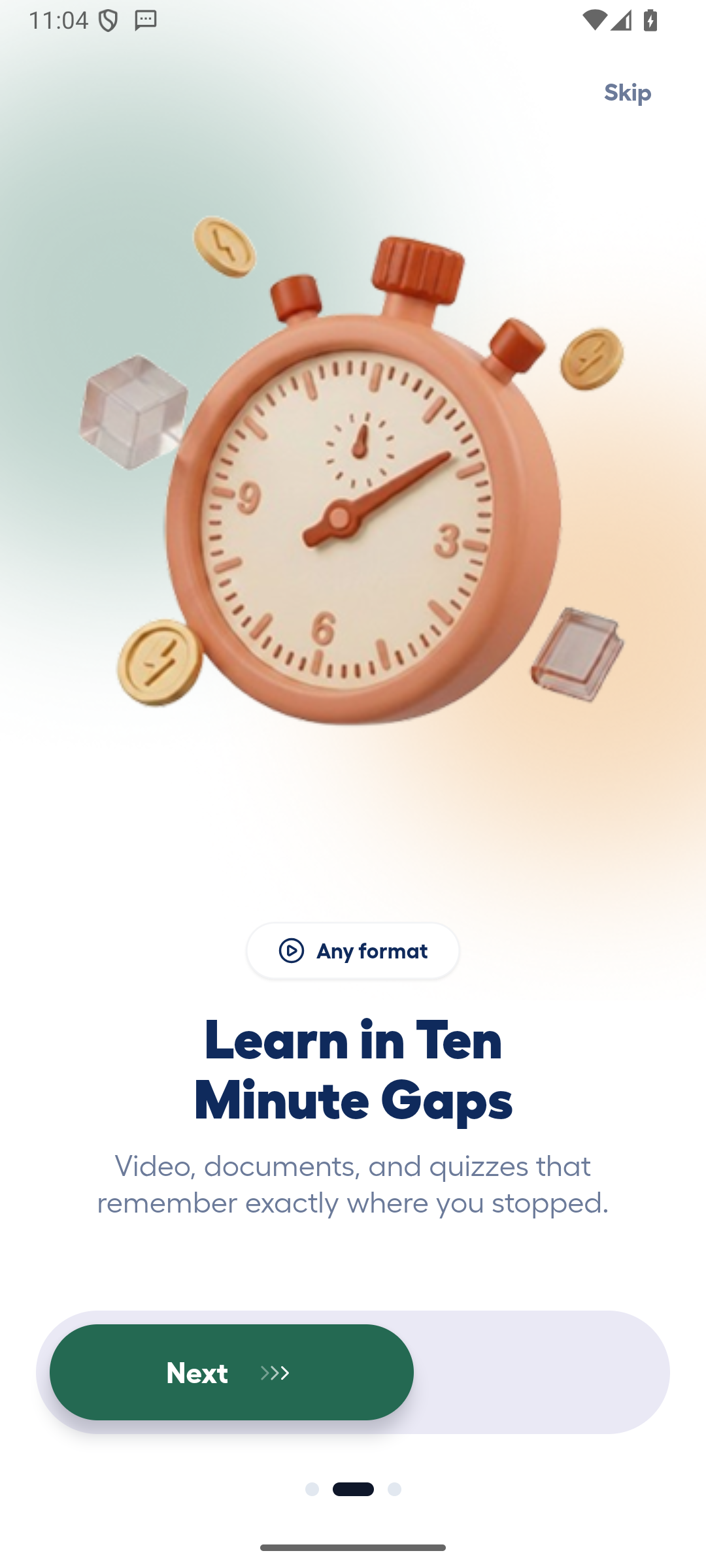
Review supported learning formats

Continue through the screen describing the available learning formats.

Lenvor Android onboarding screen describing learning formats

Lenvor Android onboarding screen describing learning formats

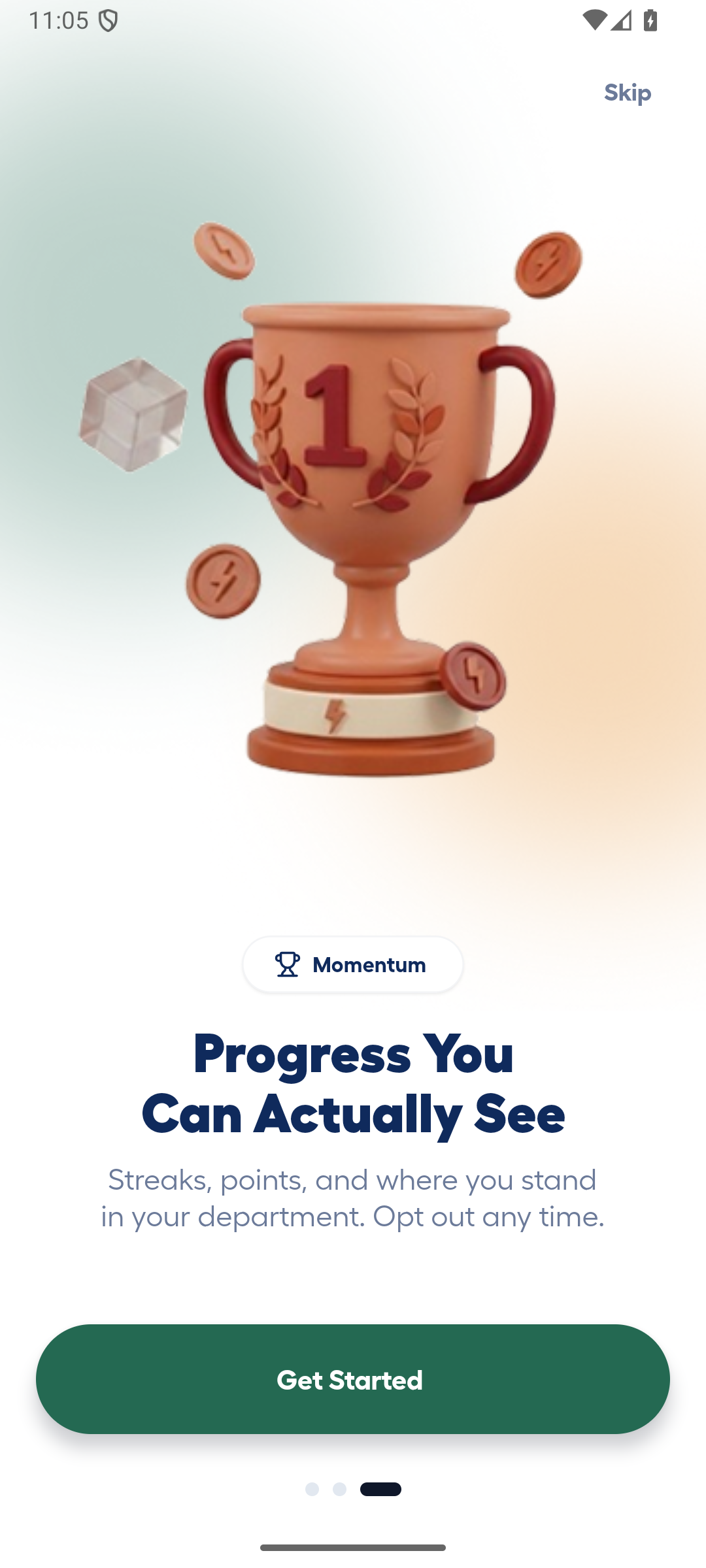
Finish the introduction

On the final introduction screen, select the visible control to open sign-in.

Final Lenvor Android onboarding screen before sign-in

Final Lenvor Android onboarding screen before sign-in

Done. The mobile sign-in screen is open.

If something goes wrong

An onboarding screen does not advance.

Select the visible continue control once and wait for the next screen.

The app closes during onboarding.

Open the app again. If it repeats, record the device model and Android version for support.

Mobile

Sign in on Android

Sign in to the Android app and confirm that the learner home screen opens.

Staff learners — Android 2 min read Mobile

Before you start

  • An active Lenvor learner account
  • The Android sign-in screen is open

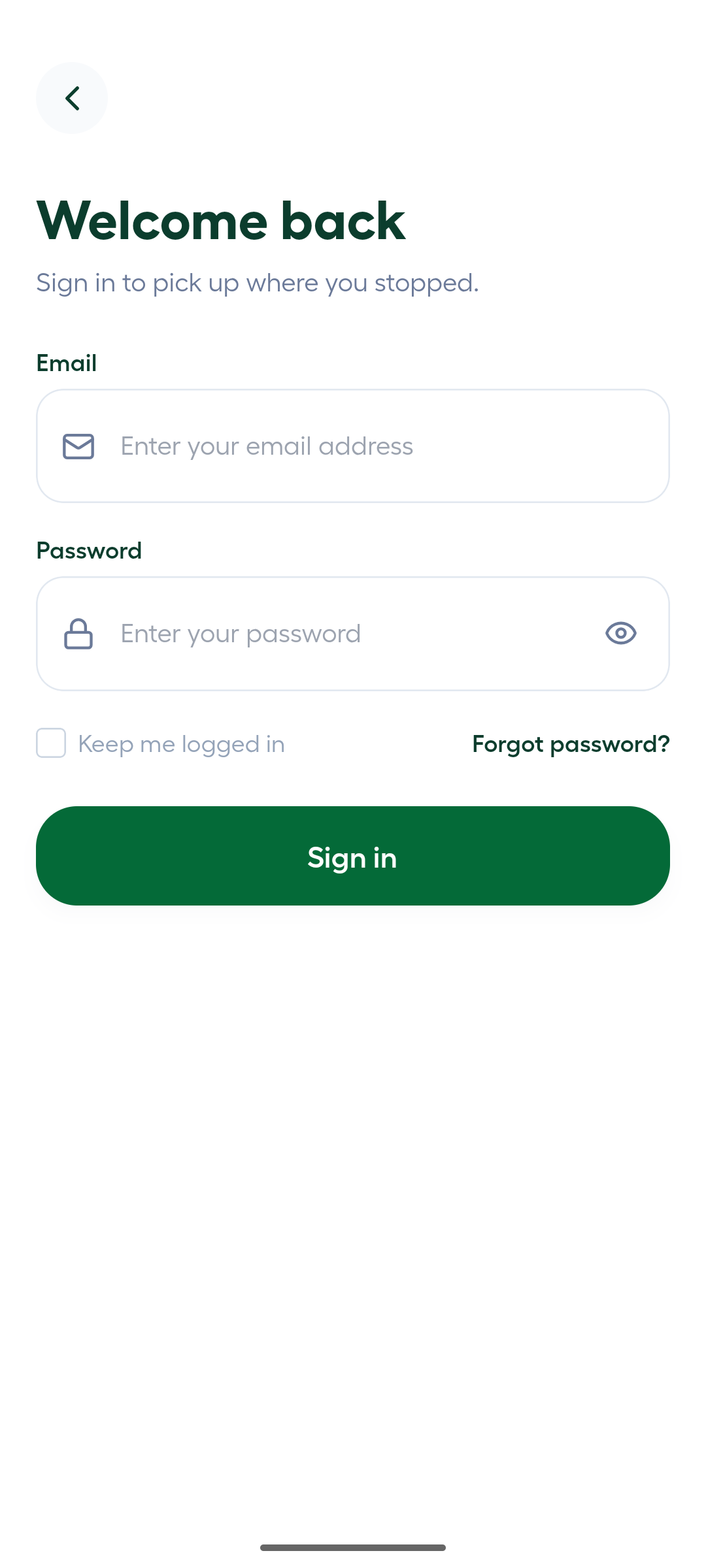
Enter your account details

Enter the email address and password assigned to your learner account, then select the sign-in control. Keep your password private.

Lenvor Android sign-in screen with empty email and password fields

Lenvor Android sign-in screen with empty email and password fields

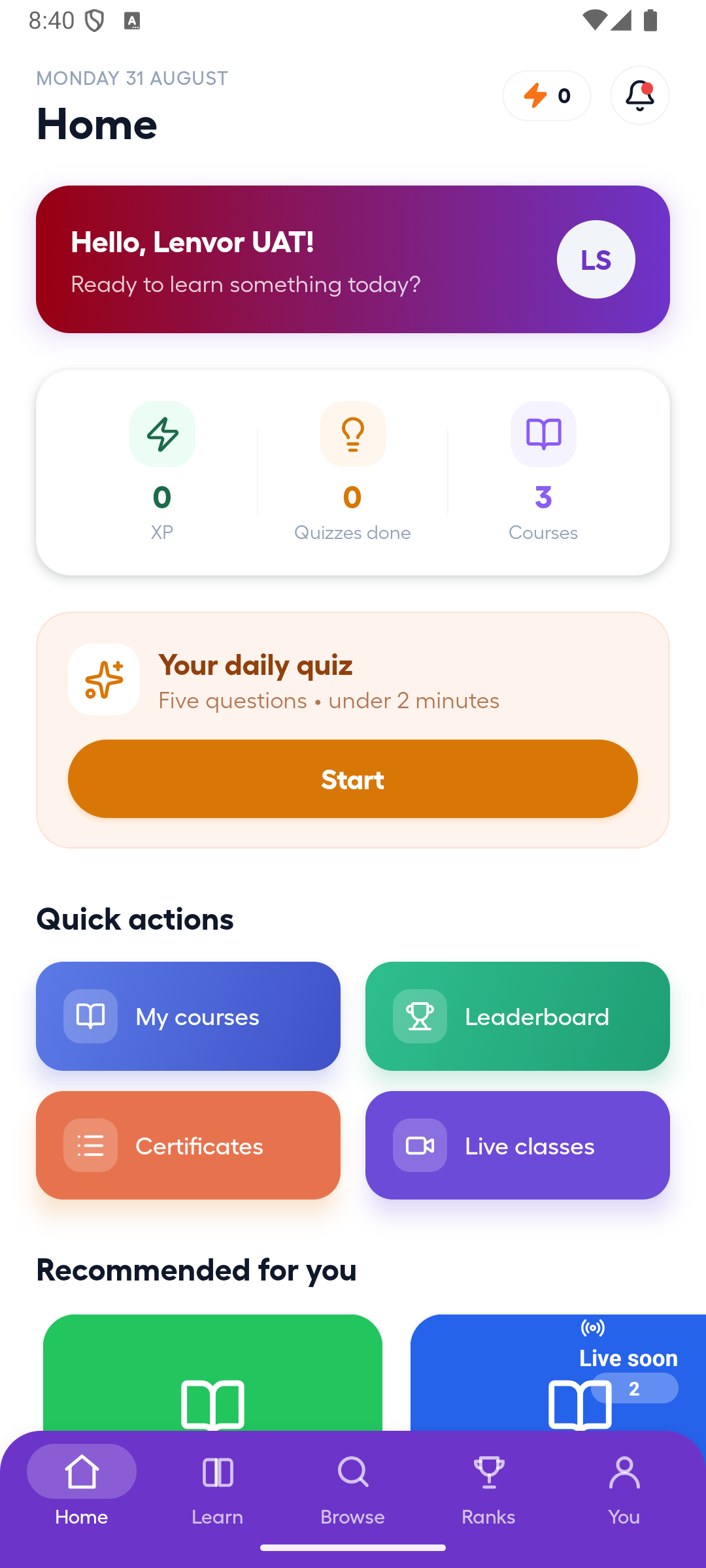
Confirm learner home

Wait for the app to open the learner home screen and confirm that the home navigation is visible.

Authenticated Lenvor Android learner home screen

Authenticated Lenvor Android learner home screen

Done. The mobile learner home screen is open.

If something goes wrong

The app does not accept my details.

Re-enter the account details carefully and confirm that the account is active for mobile access.

The app remains on sign-in.

Check the network connection and try once more. If it repeats, contact support without sharing your password.

Mobile

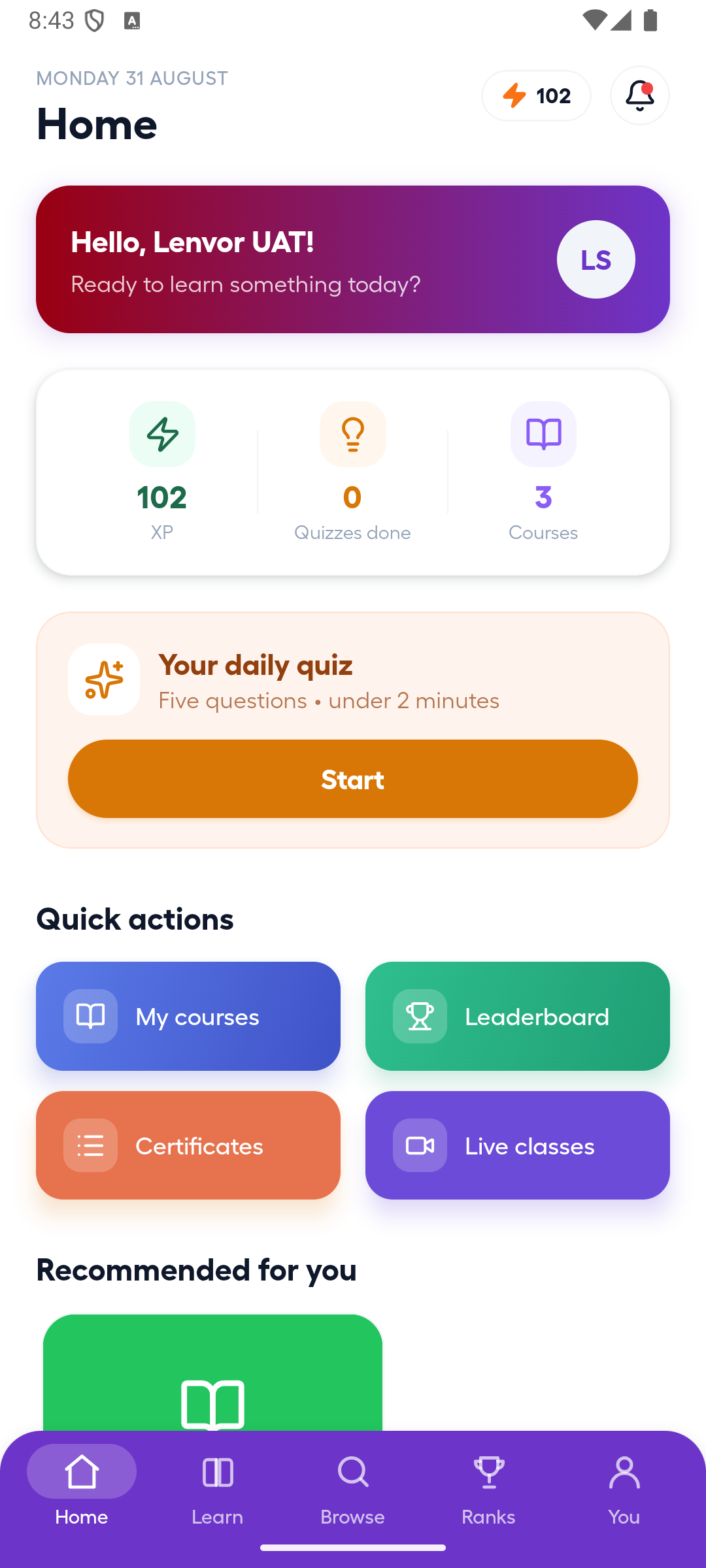
Use the Android home screen

Review the learner home screen and use its visible navigation.

Staff learners — Android 1 min read Mobile

Before you start

  • You are signed in to the Lenvor Android app

Review learner home

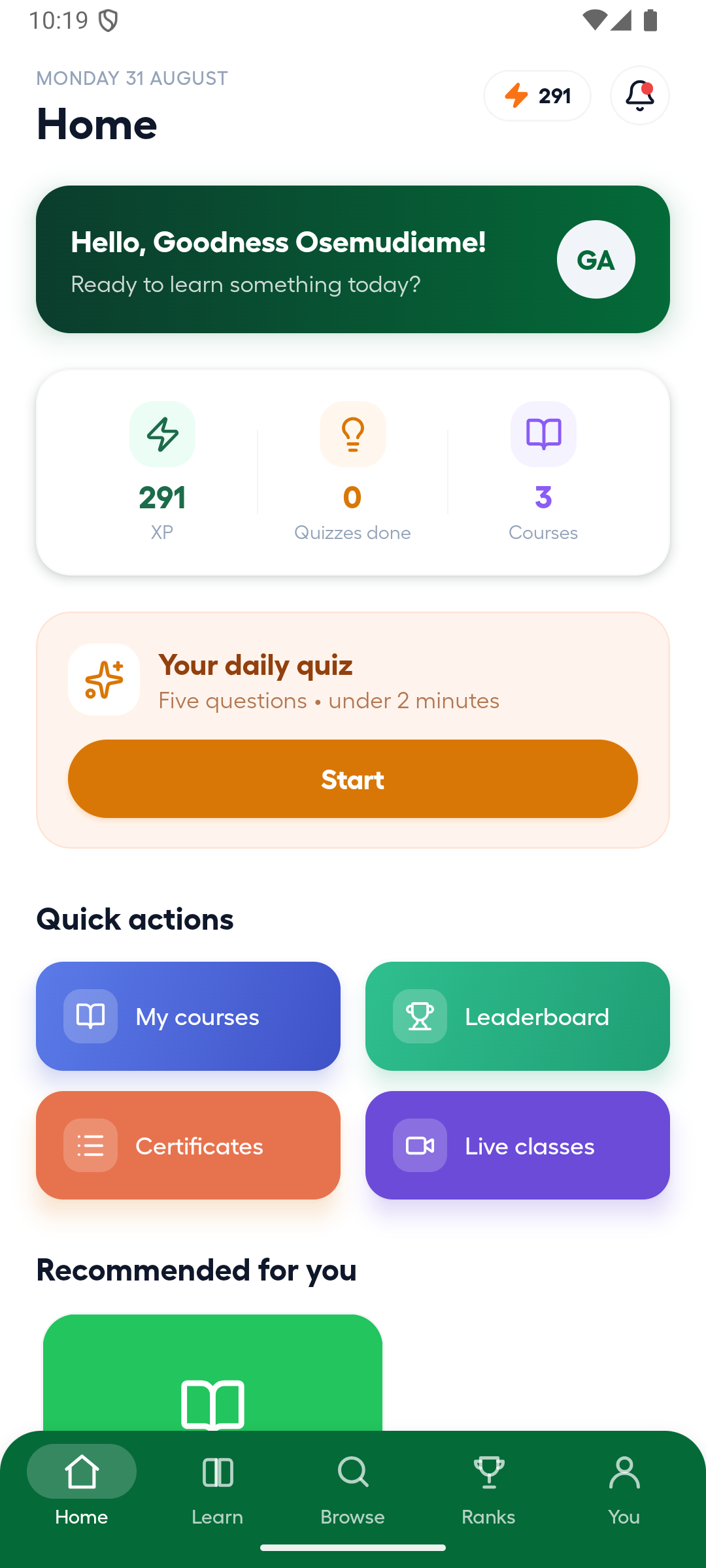
Review the content shown on Home and use the visible bottom navigation to move to another learner area.

Authenticated Lenvor Android learner home screen

Authenticated Lenvor Android learner home screen

Done. You can identify the available home content and learner navigation.

If something goes wrong

The home screen has no learning content.
No matching learning may currently be assigned or available to the account.
A navigation item does not open.
Check the network connection, return to Home, and try once more before contacting support.